Add people from a LinkedIn search
Search for people on LinkedIn with the extension on, and the people you scroll past are collected and checked.
You will have a list of people from a search, checked against the UK book, ready to add to a campaign. You do nothing beyond browsing.
Before you start
The extension installed and signed in: Install the Chrome extension. You are signed in to LinkedIn in the same Chrome.
Steps
- On LinkedIn, run a people search as you normally would.
- Click the Adapt Leads icon. This page shows People search, your search words and the number of people on the page.
- Scroll the page. People are added as they come into view. The extension sweeps every few seconds, so lower results are picked up as they load.
- Press Check N at the bottom to look up the ones not yet checked. It costs nothing.
- Open the List tab. Use the chips (Everyone, Ready to email, In the book, Not checked, Not in the book) or the Filter people box.
- Tick people (or Select all), then press Add to a campaign, Reveal emails or More.
- Go to the next page of results yourself. Its people appear too.
What happens to them
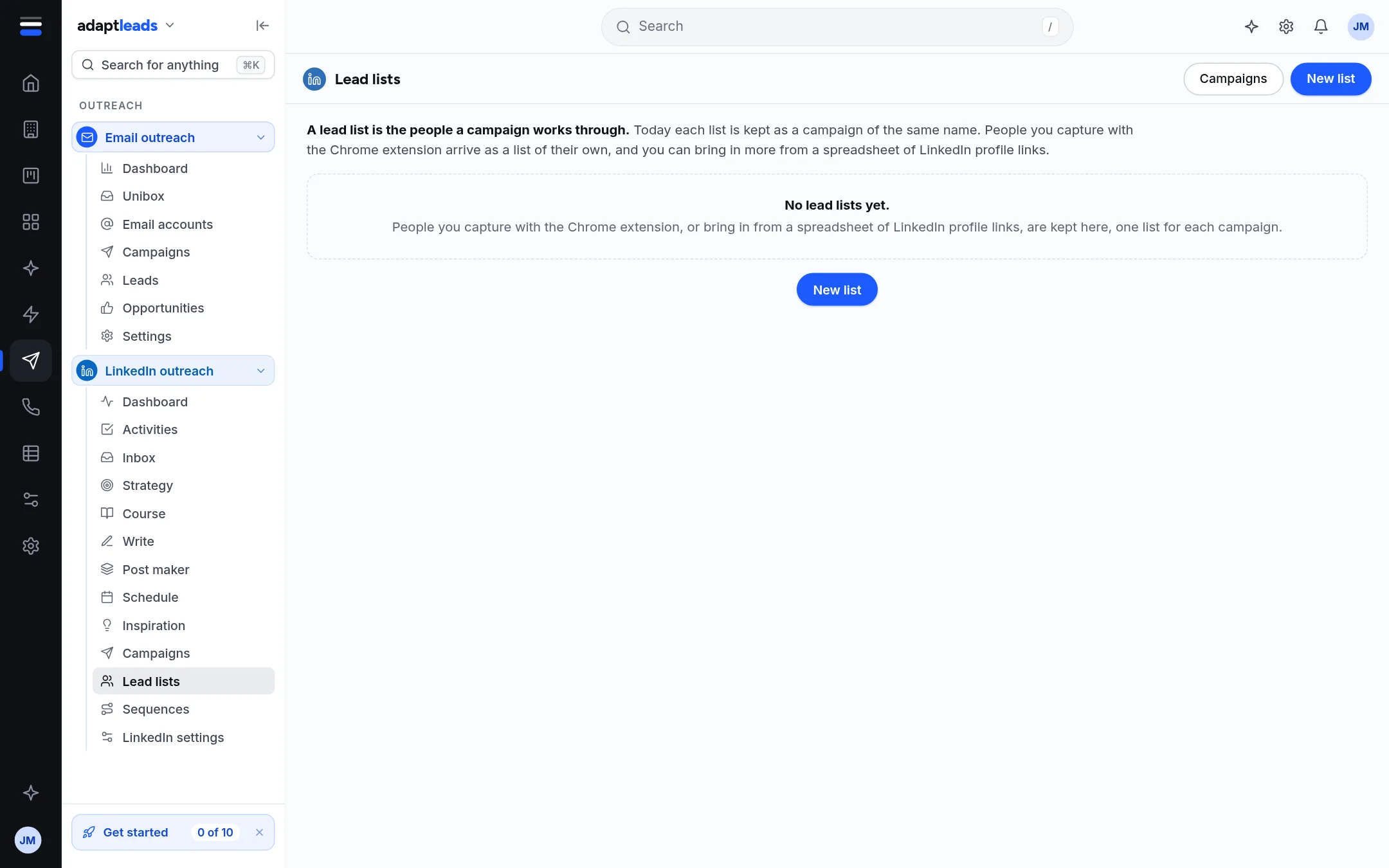
Captured people are filed in a list named after the search and the day. In the app that is a draft campaign of the same name: see Lead lists under LinkedIn outreach. It sends nothing.
What the extension never does
It never clicks, never scrolls for you and never opens a result. It reads only what is on your screen.
If someone is missing
If the page seems to show more than were read, the panel says Some are missing. If none can be read it says We cannot read this page: press Reload the page. Reveal emails uses one export for each email we hold: see Credits and exports: what costs what.
More: Capture as you browse, A people search page and LinkedIn lead lists.