Set your LinkedIn pace (limits and hours)
Choose Cautious, Balanced or At the cap, and your working hours, so the extension stays well inside LinkedIn's limits.
You will have limits and working hours saved on your account. The extension reads them each time it starts a run.
Steps
- Open LinkedIn outreach, then LinkedIn settings, then Limits (under How it runs).
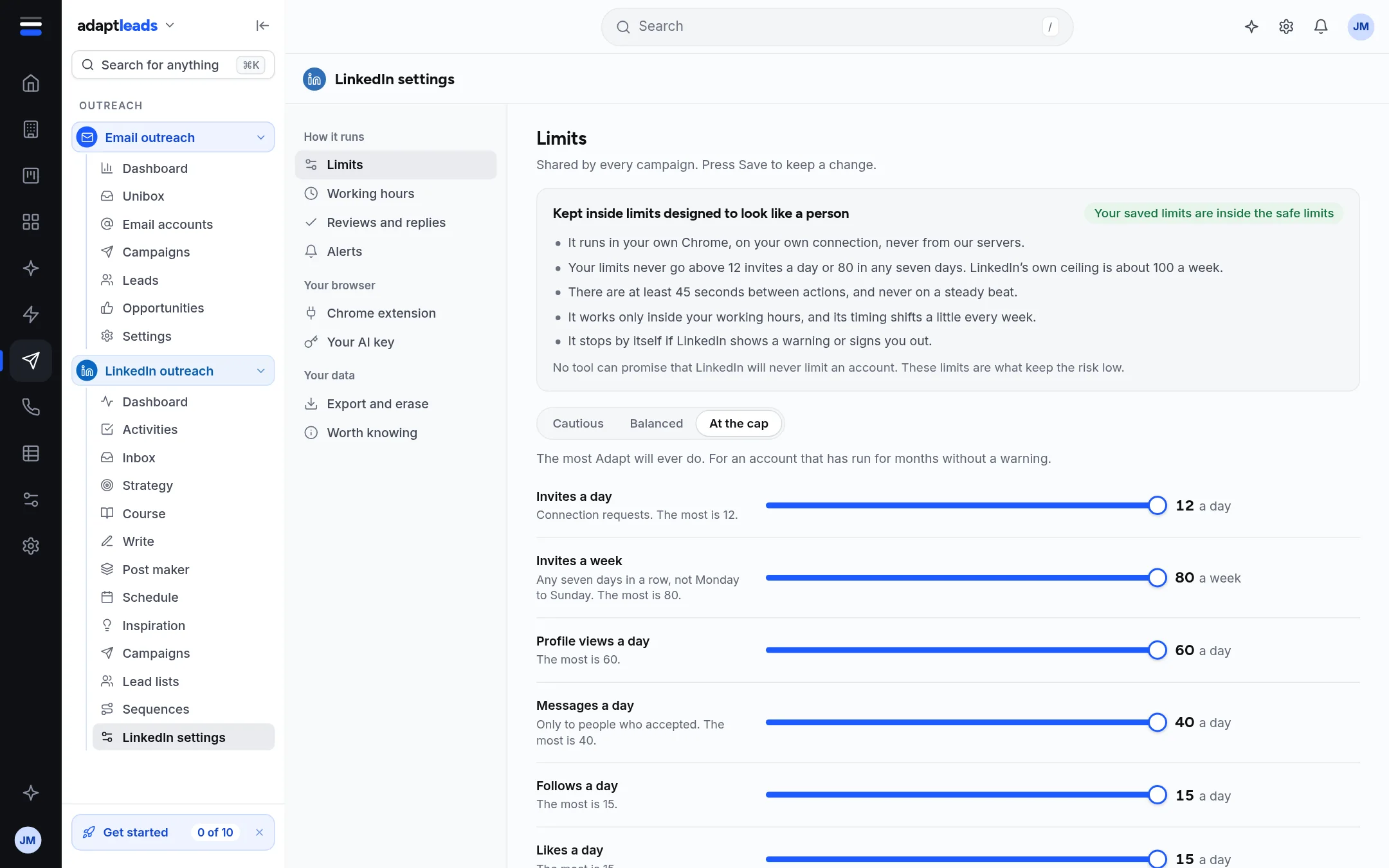
- Choose a preset: Cautious for a new account or one LinkedIn has warned before, Balanced (10 invites a day, 80 a week) for most accounts, or At the cap only for an account that has run for months without a warning.
- Or drag a slider: Invites a day, Invites a week, Profile views a day, Messages a day, Follows a day, Likes a day. Each says its maximum.
- Press Save. It asks first and lists each change, and warns if you raised one.
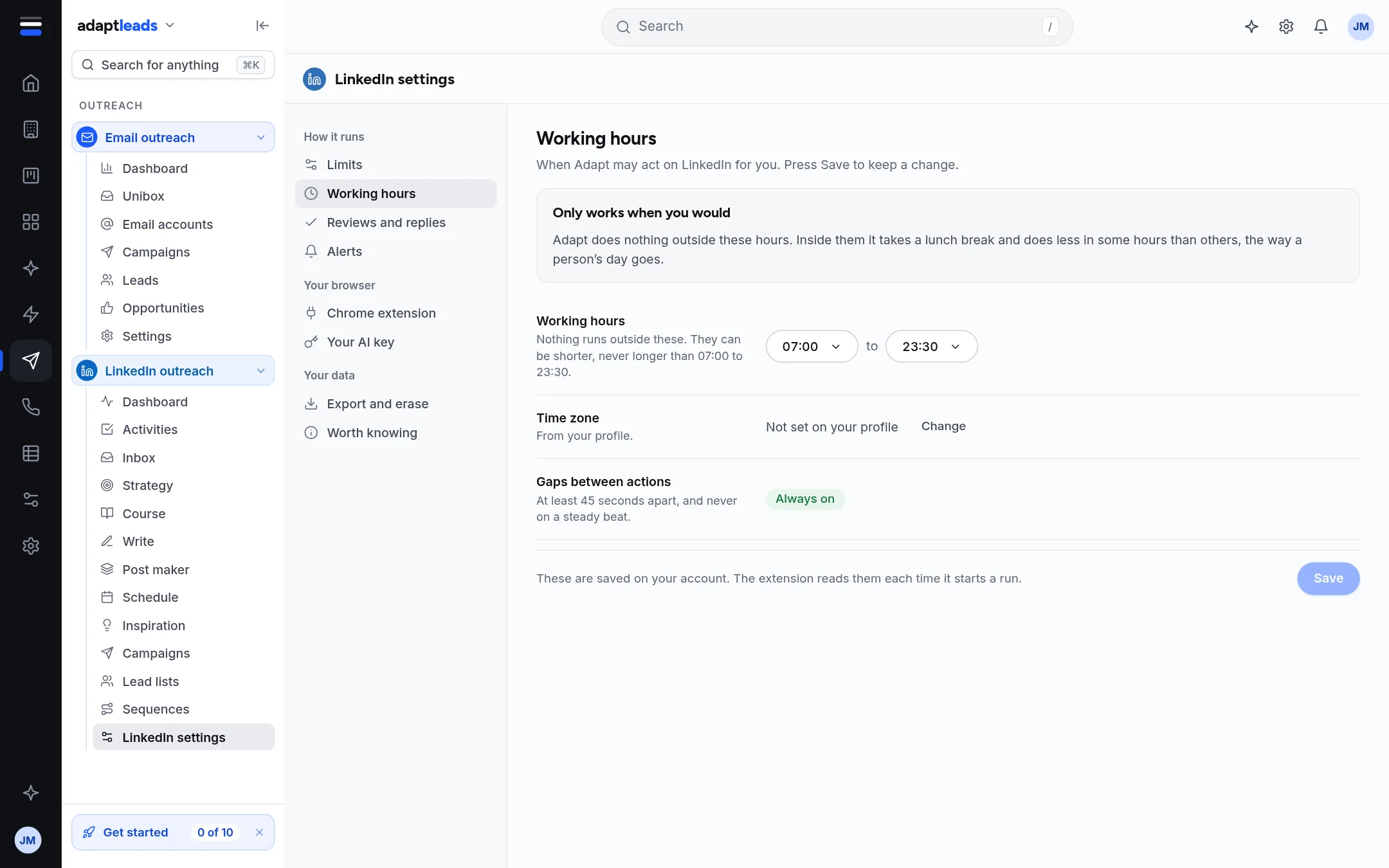
- Open Working hours. Choose a start and an end. They are held between 07:00 and 23:30 and can be shorter, never longer.
- Press Save.
What you will see
A bar shows whether your saved limits are inside the safe limits. Undo drops changes you have not saved. If your saved limits go above the safe ceiling, the app says so in red and will not let you make a campaign active until you fix them.
If you never save, the extension uses its own standard rhythm for the week, always inside the safe band.
Worth knowing
- No limit can be set above its ceiling: 12 invites a day and 80 in any seven days.
- The weekly count is a rolling seven days, kept on your account. Reinstalling the extension does not reset it.
- If your account is new, choose Cautious yourself. Adapt does not do it for you.
- The time zone comes from your profile, but the extension works on the clock of the computer it runs on.
No tool can promise LinkedIn will never limit an account: read LinkedIn risks and honest limits. More detail: LinkedIn settings, limits and working hours and Limits and safety on LinkedIn.