Schedule LinkedIn posts
Give a draft a day and time, move it on the calendar, or take it off. A post goes out only when LinkedIn posting is connected.
You will have a post on the calendar at the day and time you chose.
Before you start
A saved draft: Write a LinkedIn post. To have posts go out by themselves, connect LinkedIn posting: Connect your LinkedIn profile. Without it a scheduled post waits on the calendar and nothing is published.
From Write
- Open Write with your post in it.
- Press Schedule.
- Pick a day and time in your own time zone, and a kind of post. The window is up to a year ahead.
- Press Schedule it.
From the calendar
- Open Schedule. Calendar shows a week, with Today and arrows. List and Board show the same posts another way.
- Drag a draft from the Drafts rail onto the calendar, or open it and pick a time.
- Drag a scheduled post to move it.
- Click a post for its menu: Edit in Write, Move it or Schedule, and Take it off the calendar. Taking it off puts it back in your drafts and publishes nothing, after you confirm.
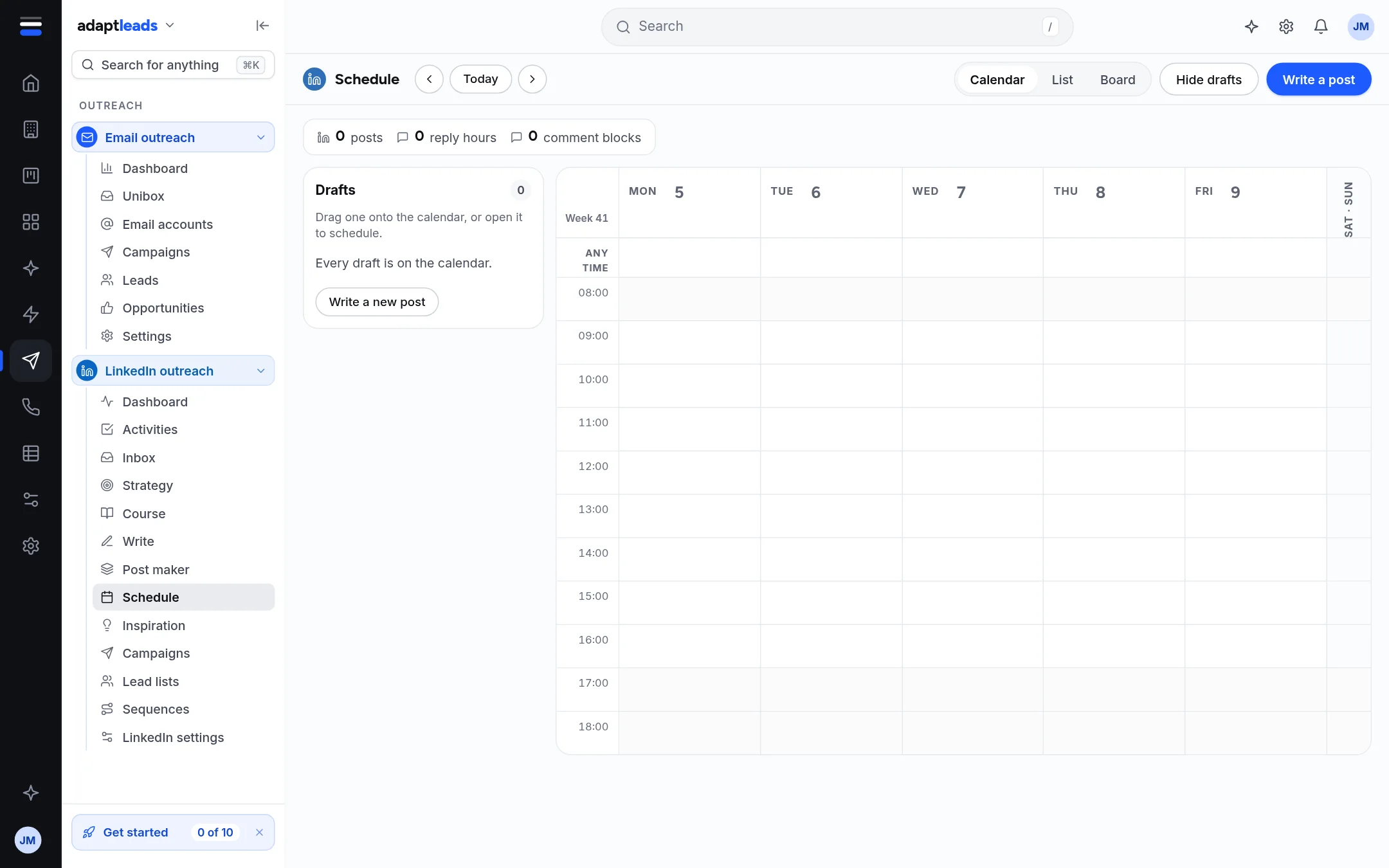
What you will see
The page says which applies: posts go out on their own, or they wait. States are Draft, Scheduled, Posted, Needs attention (with the reason shown from the post's menu) and Archived. Every post is checked against your publishing rules at the moment it goes out. One that fails is marked needs attention and not sent.
A post that has gone out is never moved, because that would put it out twice. Post now in Write asks first, and only works when posting is connected.
More: Schedule LinkedIn posts and How LinkedIn posts go out.