Fix a mailbox that has stopped sending
Find out why a mailbox shows Failed or Needs sign-in, re-test it and get campaigns sending again.
You will have a mailbox that shows Connected again, so campaigns can send from it.
Steps
- Open Email outreach, then Email accounts.
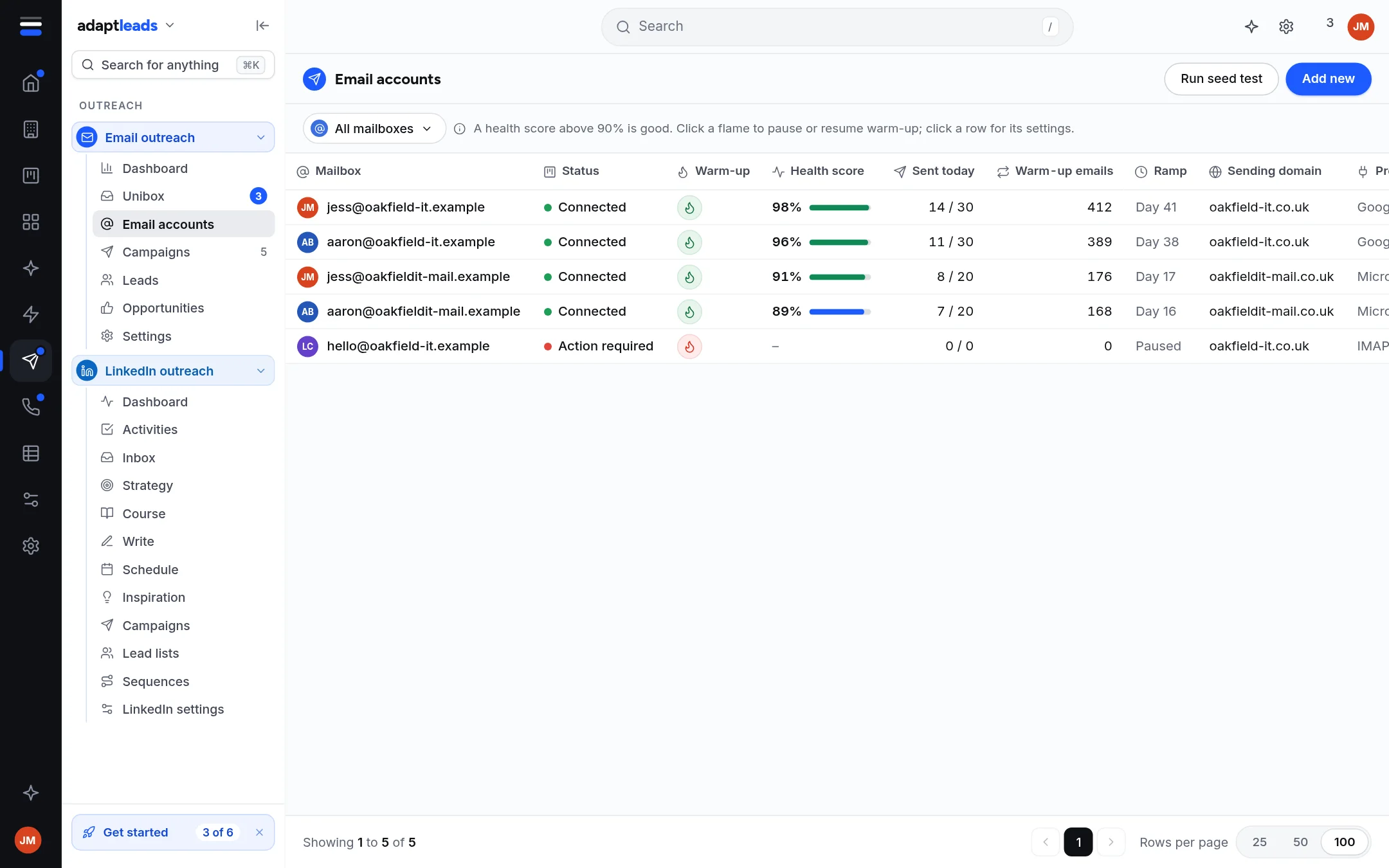
- Click the Needs attention filter. A mailbox that failed shows Failed or Needs sign-in, with a reason.
- Read the reason. It is in plain words, for example "The sign-in was refused" or "The mail server did not answer in time".
- Open the row's menu and choose Connection settings. Correct the password (for Gmail, a 16-character app password), host or port.
- Click Save and re-check. This signs in again and sends nothing. You can also use Re-test the connection in the same menu.
- Check the status reads Connected.
Then check the rest
If the mailbox is Connected but a campaign still does not send, work through the list in My email is not sending. The common causes are a campaign still waiting for approval, no sending mailbox ticked in Options, a paused mailbox (use Activate), or a warm-up inbox chosen when you needed a sending mailbox.
If it keeps failing
- Replies and bounces are not read from a mailbox whose sign-in is refused. They appear in the The Unibox: read and sort replies once it is fixed.
- A red flame means warm-up cannot run until the connection is fixed.
- Removing the mailbox archives it from your list and leaves the mailbox itself untouched. You can connect it again: Connect a mailbox to send email from.
Every message and what to do is in Email problems, by message.