Templates
A template is a ready-made starting setup for your CRM. Pick one, preview it, choose what to bring, and apply it. Undo puts things back.
A template is a starting setup for your CRM. It holds the objects (such as Companies, People and Deals), the fields on each, how those fields are laid out on a record, one pipeline of stages, products, sources, saved views, forms that feed it, automations and a dashboard. Everything it brings stays editable afterwards.
Why it matters
A blank CRM asks you to design everything before you can use it. A template gives you a sensible shape for your kind of business on day one, and you change what does not fit.
How a template sets up a workspace
Open Templates and setup in the CRM menu (the page is called Set up your CRM). Nothing changes until you press Apply on the last step.
- Start. Choose Start blank (Companies, People and Deals with names only), Basic CRM (the fields most teams need, a six-stage pipeline and the usual views), or Built for your sector.
- Template. For a sector, pick the trade, then a template.
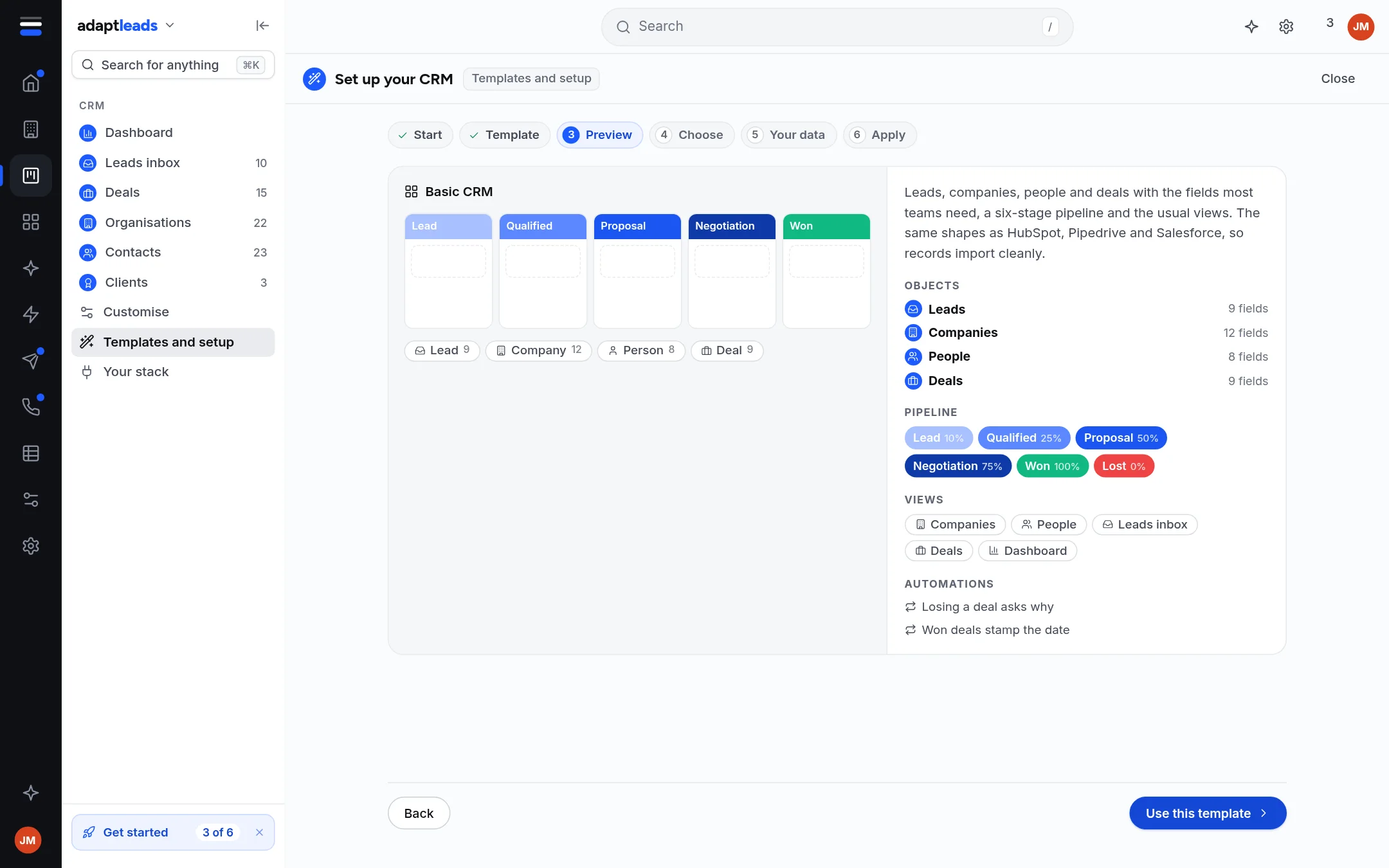
- Preview. See the objects, the pipeline, the products, the views, the forms and the automations. Press Use this template.
- Choose what to bring. Everything is ticked. Untick a section or one field to leave it out. Fields marked Sensitive are held more carefully.
- Your data. A new CRM starts empty. Choose to start empty or to import from another CRM with a CSV, which opens once the CRM is set up.
- Apply. It takes a few seconds. Undo puts back what you had.
What is ready today
| Template | What it is |
|---|---|
| Start blank | Companies, People, Deals. Three views. |
| Basic CRM | Leads, Companies, People, Deals. Six stages: Lead, Qualified, Proposal, Negotiation, Won, Lost. Dashboard, Leads inbox and the usual views. Losing a deal asks why; won deals stamp the date. |
| Card payments consultancy | The setup behind the example customer. See The Reeve Consult example customer. |
| Salon group | Clients, salons, memberships and treatment plans. |
| Selling to salons | Salon businesses and each of their salons, with your account there. |
| Builders' or timber merchant | Trade accounts, quotes and projects. |
| Selling to merchants | Merchant groups and their branches, listings and agreements. |
| Independent garage | Customers and cars, jobs, MOT and service dates. |
| Car dealer | Sales leads, vehicles, part-exchange and finance. |
| Selling to garages and dealers | Garage and dealer businesses and their sites. |
Accountants, Solicitors, Care homes, Manufacturing and Trades appear in the sector list marked Being researched. Start from Basic and shape it.
Limits
- After a template is applied, stages, products, sources, option lists, layout and ways in are read-only for now. Fields, views and automations save as you change them.
-
A template is not a list of leads. It does not add businesses to your CRM.
The Templates page under Customise is a separate store of workflow templates. Other templates there say Not in the store yet. Installing one adds its workflows to your browser only: it does not set up your CRM's records, stages, forms or documents, and nothing runs on your leads yet. A finance broker template built for one customer is not part of the base product and cannot be installed by you.
- The Reeve Consult example customerReeve Consult is the generic example customer used for testing and the demo. This page shows what its CRM setup looks like.