Install the Chrome extension
Download the Adapt Leads extension, load it into Chrome by hand and sign in. It is not in the Chrome Web Store.
You will have the Adapt Leads panel in Chrome, signed in to your account.
Before you start
- Google Chrome on a computer.
- You are signed in to Adapt Leads, and to LinkedIn in the same Chrome. Everything runs there, on your own connection.
Steps
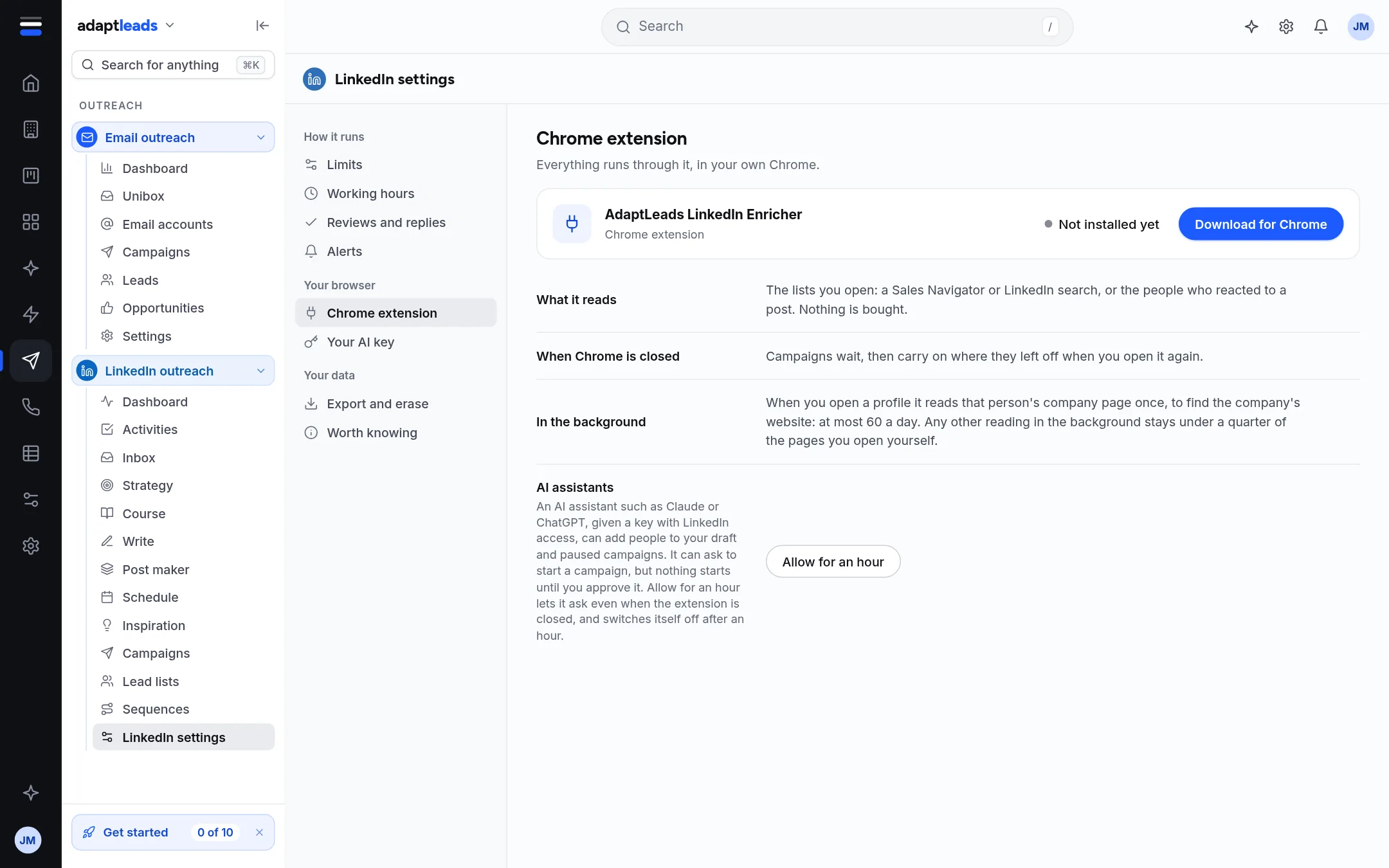
- In Adapt Leads open LinkedIn outreach, then LinkedIn settings, then Chrome extension. Press Download for Chrome. A zip file downloads.
- Unzip it into a folder you will not delete by accident, for example in Documents. Do not run it from the zip.
- In Chrome, type
chrome://extensionsin the address bar. - Turn on Developer mode, top right.
- Press Load unpacked and choose the unzipped folder.
- Click the puzzle-piece icon in the toolbar and pin Adapt Leads.
- Open LinkedIn and click the Adapt Leads icon. The panel opens.
- Press Sign in. Adapt Leads opens in a tab and brings you back to the panel by itself. There are no keys to copy.
What you will see
The panel shows three tabs, This page, List and Today. On a LinkedIn page there is also a small tab on the right edge. In the app, LinkedIn settings shows Installed or Working now once the extension has spoken to your account.
Chrome may show a banner
Because the extension is loaded unpacked, Chrome can show a banner about Developer mode when it starts. Leave Developer mode on, or the extension is disabled.
If it does not work
If the panel says Adapt Leads cannot start, restart Chrome and open it again. Still stuck: open chrome://extensions, find Adapt Leads, press the reload arrow, then Try again. See Chrome extension problems, by message and The first-run panel.
To get a newer version later, see Update the extension. Next: Set your LinkedIn pace (limits and hours).