Build a call list
Tick businesses in Adapt Leads, send them to the Caller console, and give the list to a team.
You will have a call list waiting for a team, ready for a manager to hand to a caller. Only operator accounts can do this: anyone else is told so and nothing is sent.
Steps
- In Adapt Leads, tick the businesses to ring, on Find, on a list, in your companies, or on a record. Select 500 or fewer.
- Press Send to…, then choose The caller console.
- In Call this list, type a name such as "Sheffield accountants". Callers see it at the top of their screen.
- Under How many callers is this for? pick 1, 2, 3, 4, 5, 6, 8 or 10. A bigger number splits the businesses into that many equal lists. A number larger than the businesses you ticked is greyed out.
- Read the line that says what will happen, then press Send to the caller console.
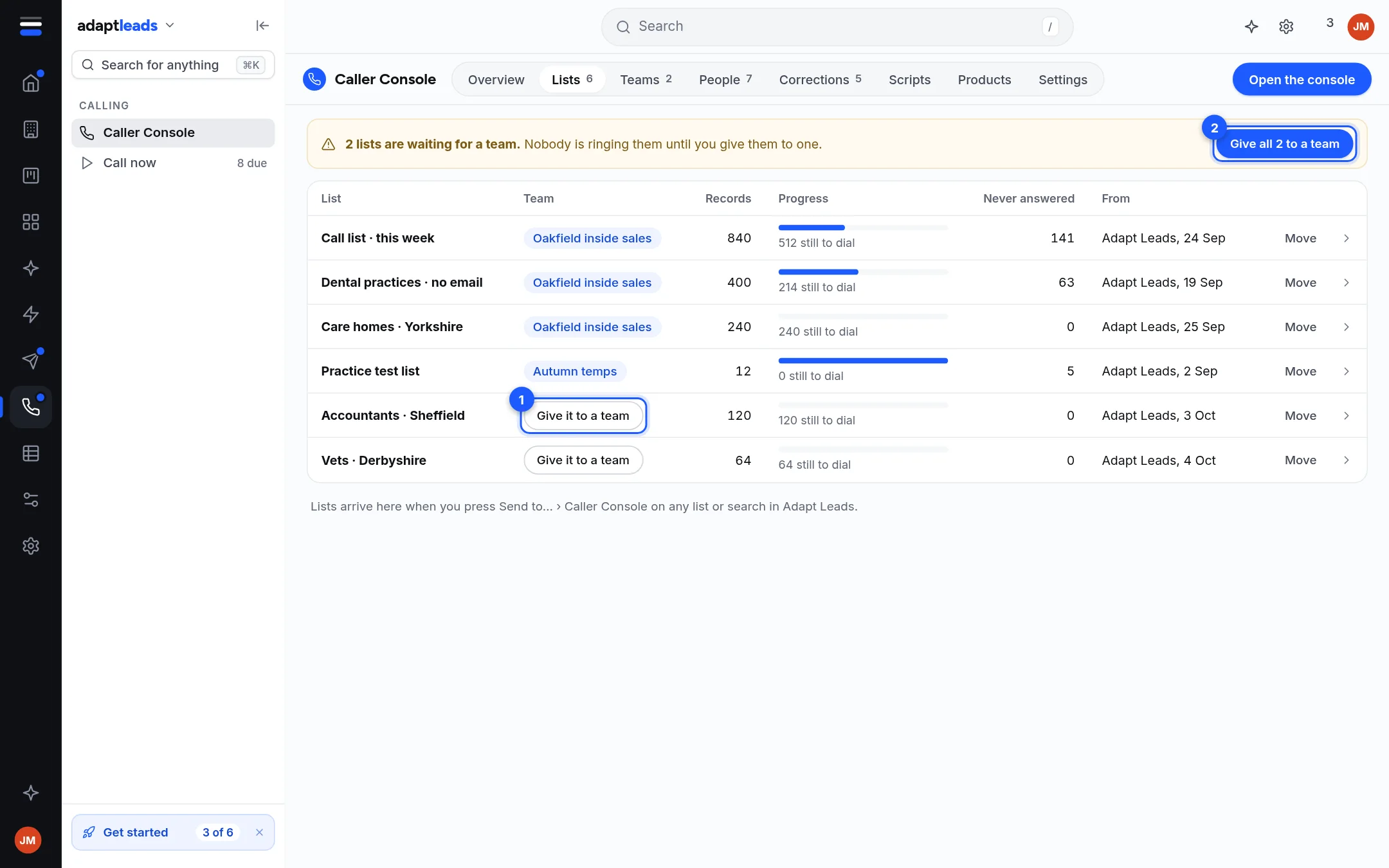
- Open Caller Console, then Lists. On a list with no team, press Give it to a team and pick the team. Or press Give all N to a team on the banner.
What happens
- Anyone who has asked not to be contacted is removed before the list leaves, and businesses with no phone number are left behind. You are told how many of each.
- The list waits with no team. Nobody can ring it until you give it to one. Giving it to a team sends nothing to anyone: the team's manager sees it and hands it to a caller, who is then emailed.
- A record a caller is already holding stays with them if you move the list.
What does not happen
- Numbers are not checked against TPS or CTPS. Do that before you ring: Calling rules and the law (PECR, TPS and your duties).
- You cannot create a list inside the Lists tab, and the LinkedIn option in the same window says Not connected yet.
If the window says the console is not connected, or did not answer, nothing was sent. Try again.
Next: Add a caller to your team. More: Send businesses to the Caller console and Call lists and handing them to a team.