Set up Adapt Leads in ten minutes
Save who you sell to, run a first search and make a first list. Nothing is sent to anyone.
You will end with a saved description of your market, a first search and a first list. Nothing here sends a message to anyone.
Before you start
You need an account. See Create your account. A brand new account opens the Set up page by itself, once. Otherwise open Set up in the Home area of the side menu, or press the Get started chip at the foot of the menu.
Steps
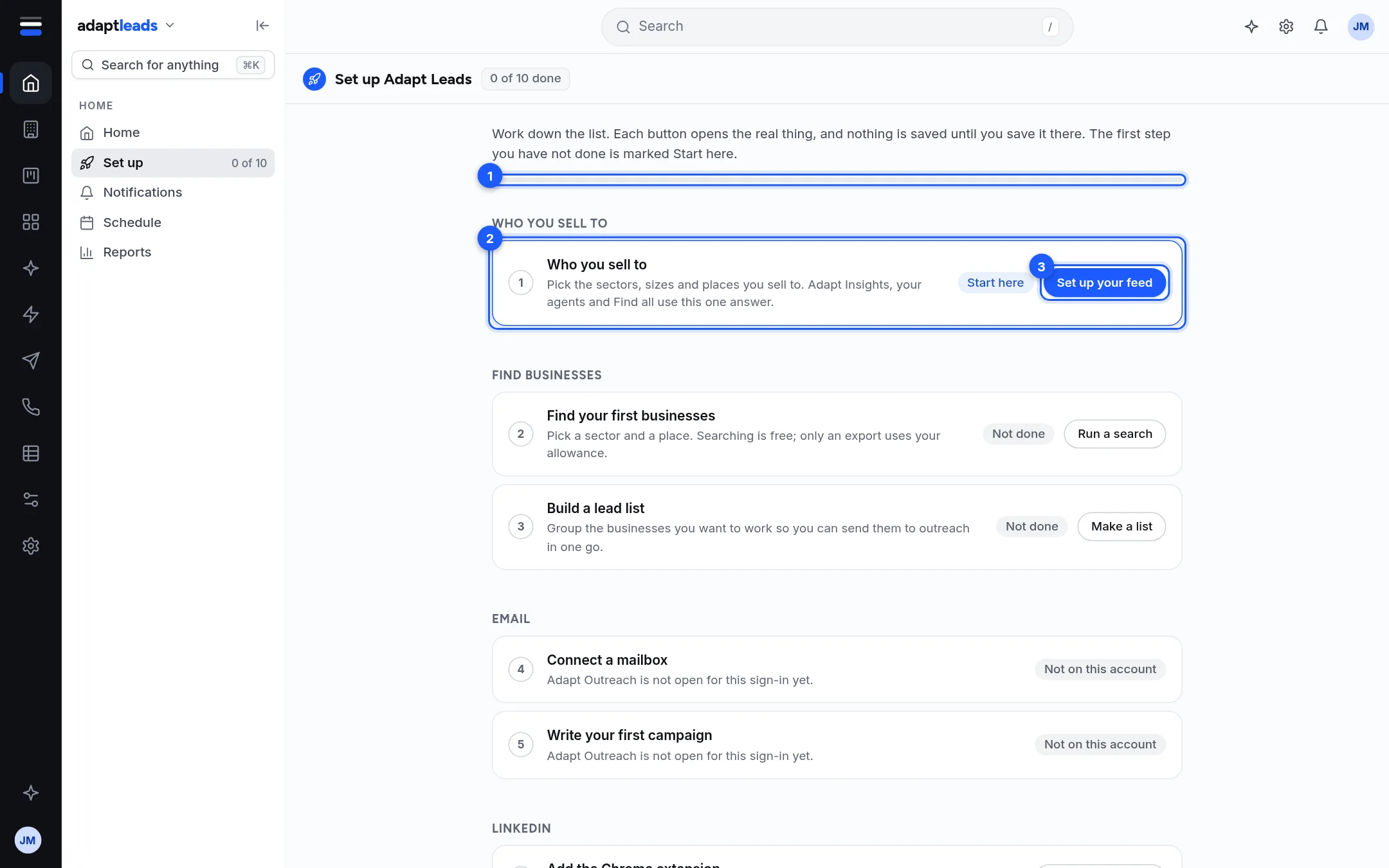
- On the Who you sell to card press Set up your feed. A five-question wizard opens.
- Pick the sectors you sell into (up to 30), the sizes, and the towns or postcode areas. Choose what to watch and how often you want an email. See Set up your feed for the full walk through.
- Save. The card turns Done and reads "Saved: ..." with your sectors and places.
- On the Find your first businesses card press Run a search. Pick a sector and a place. Searching costs nothing.
- Tick the businesses you like and press Add to list, then choose New list... and give it a name. See Make a list.
- Go back to Set up. The bar and the title chip, such as "3 of 10 done", have moved.
What you can leave for later
A mailbox, a campaign, the Chrome extension, your LinkedIn plan, the caller console, the CRM, your logo and colours and your calendar can all wait. Each has a card on the Set up page that opens the real page.
What the card statuses mean
| Status | Meaning |
|---|---|
| Start here | The first step still waiting on you. |
| Done | Adapt can see you have done it. |
| Needs you | Partly done. |
| Could not check | The read failed. Press Try again. Nothing was changed. |
| Not on this account | That area is closed to your sign-in. It is not counted in the total. |
What happens next
Your feed shapes Adapt Insights. Your first list can be sent to an email campaign or the caller console from the Lists area. Try Find 100 accountants in Sheffield for a worked example.
If something goes wrong
If a card says Could not check, press Try again. If the Set up page looks empty or a card will not open, see Record and search problems, by message or ask on Help and support. The sign-up answers are saved but the app does not read them yet, so do the feed step here even if you answered at sign-up. See The sign-up questions explained.