Add a teammate
Invite someone to your workspace by asking Ask Adapt. There is no members screen in Settings yet.
You will have sent a colleague an invitation to your workspace, by email, with a one-time link.
Before you start
- You must be the owner or an admin. Only the owner can invite an admin.
- You need the person's work email address.
- Adapt has no per-seat fee in the plans. See What is free.
Steps
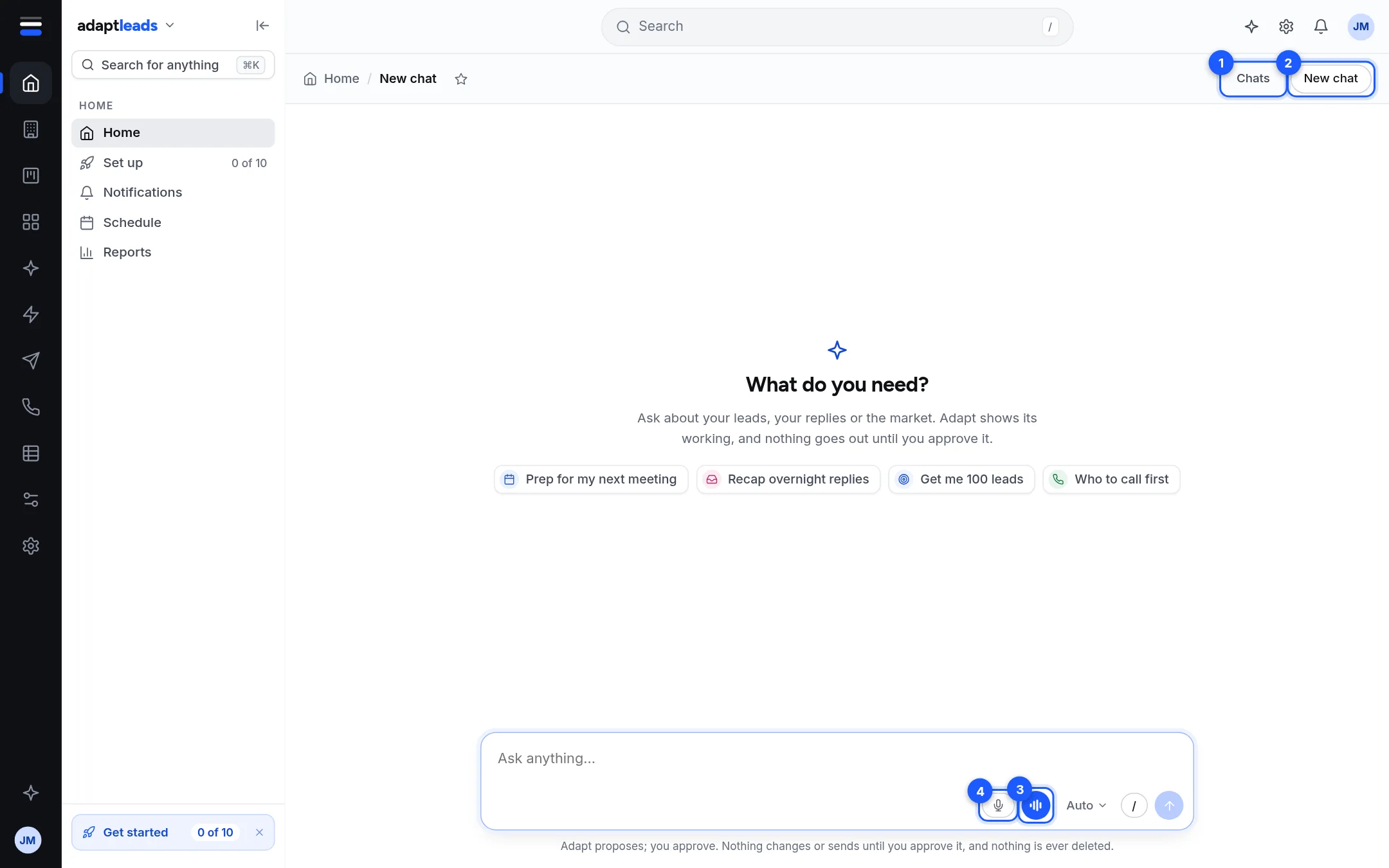
- Open Ask Adapt, from the Ask box on Home or the sparkle on the top bar.
- Type, for example: "Invite aaron@example.co.uk as a member". Say "as an admin" if you are the owner and want that.
- Ask Adapt shows an approval card titled for the invite. It lists the person, the role and what happens: they get an email with a one-time link. Nothing is sent yet.
- Read it and press Send the invite.
- The card shows Done. The invite email goes to that person.
What the person does
They sign in (or sign up) with the same email address the invite was sent to, then open the link in the email. A different address is refused with "This invite is for a different email address." The link lasts 7 days and works once.
What happens next
The new person becomes a member with the role on the invite. It is never owner. Every invite is written to your organisation's audit log. A pending invite can be revoked by an admin through the server, but there is no button for it. See Your team and invitations.
The sign-up team step does not invite
The team step in the sign-up questions keeps a list of addresses but does not send anything. See The sign-up questions explained.
If something goes wrong
- "Only an owner or admin can invite someone." Ask the owner.
- "Only the owner can invite an admin." Invite as a member first, and see Make someone an admin.
- Messages the invited person sees are in Team and access messages.