Switch to compact view
Choose Compact density in Settings, Appearance to fit more rows on the screen, and set rows per page.
You will see more on each screen, because every row, list, table, panel and control is shorter.
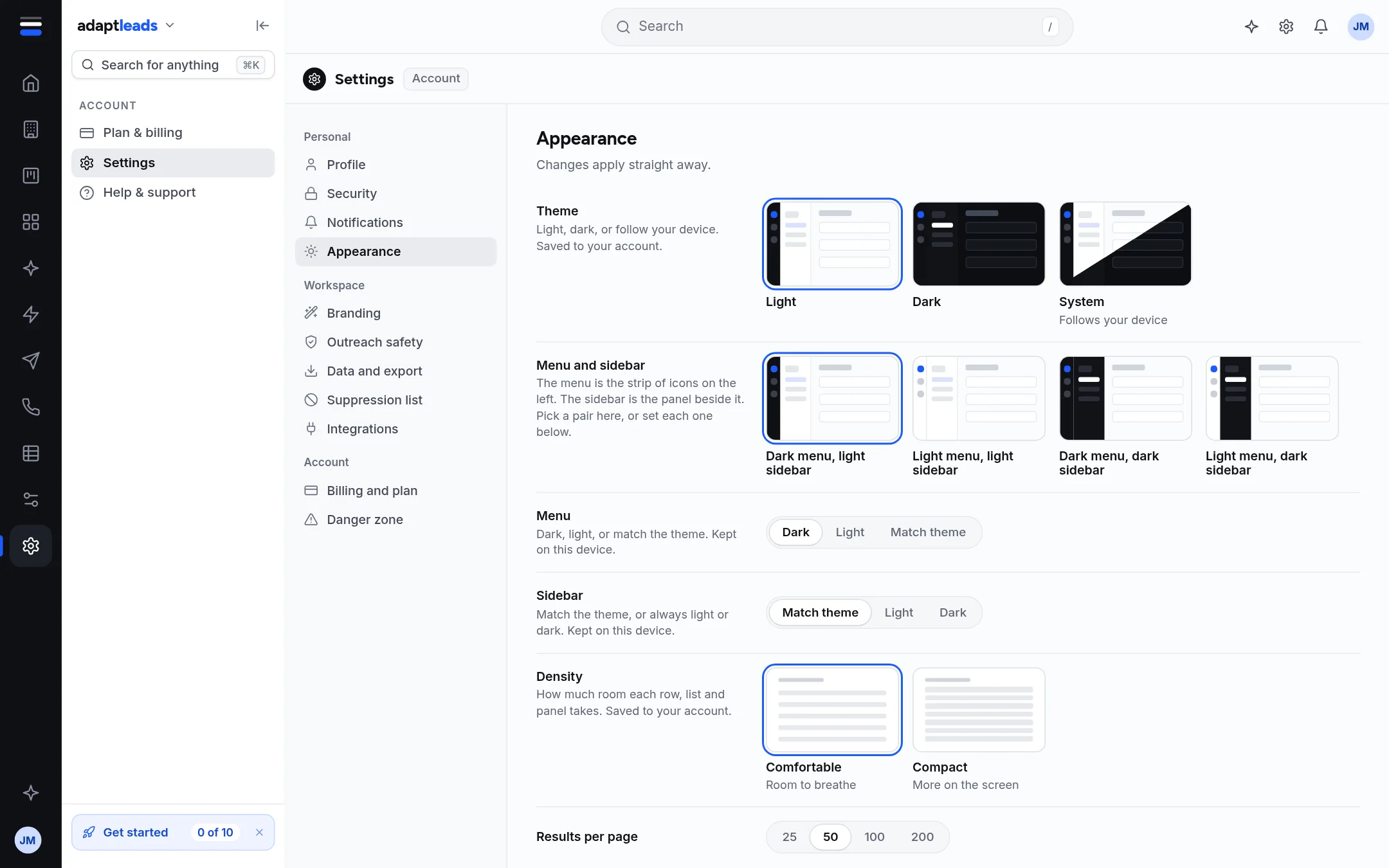
Steps
- Open Settings from the cog on the top bar.
- Choose Appearance.
- Under Density press Compact ("More on the screen").
- The whole app changes at once.
To go back, press Comfortable ("Room to breathe") in the same place. The product name menu also has density.
Set how many rows a table shows
On the same page, choose Results per page: 25, 50, 100 or 200. The default is 50. It sets where Businesses and Directors start. You can still change it at the foot of a table. See Choose columns, sort and page size.
Where it is saved
Density and results per page are saved to your account. The page says "Saved to your account". If the change did not reach your account it says "Not saved to your account yet. It is sent again next time you open Adapt Leads." and the setting still works on your screen.
Ask Adapt can do it
Ask "Switch to compact density". It prepares an approval card and changes it after you approve. See Approval cards: what Adapt proposes and what you approve.
Combine it with dark mode
Density and theme are independent. See Turn on dark mode.
If something goes wrong
If nothing changes, reload the page. If rows still look the same size, check you are on the live app and not a printed export. For other display problems see Record and search problems, by message.