Warm up a new mailbox
Turn on warm-up for a connected mailbox, tune it, and know when it is safe to send a campaign.
You will have warm-up running on a mailbox, so it builds a sending reputation before it sends to your leads. Allow about two weeks.
Before you start
- A connected sending mailbox: Connect a mailbox to send email from.
- At least one Warm-up inbox connected as well. Warm-up works by sending real email between your own mailboxes, which open the messages and reply to some of them.
Steps
- Open Email outreach, then Email accounts.
- Find the mailbox. Its status must read Connected. A red flame means fix the connection first.
- Click the flame in its row.
- Read the confirmation. It says how many emails a day will go and that they are real email.
- Click Turn on warm-up.
Click the flame again to pause it.
Tune it (optional)
Click the mailbox row to open its Warm-up panel.
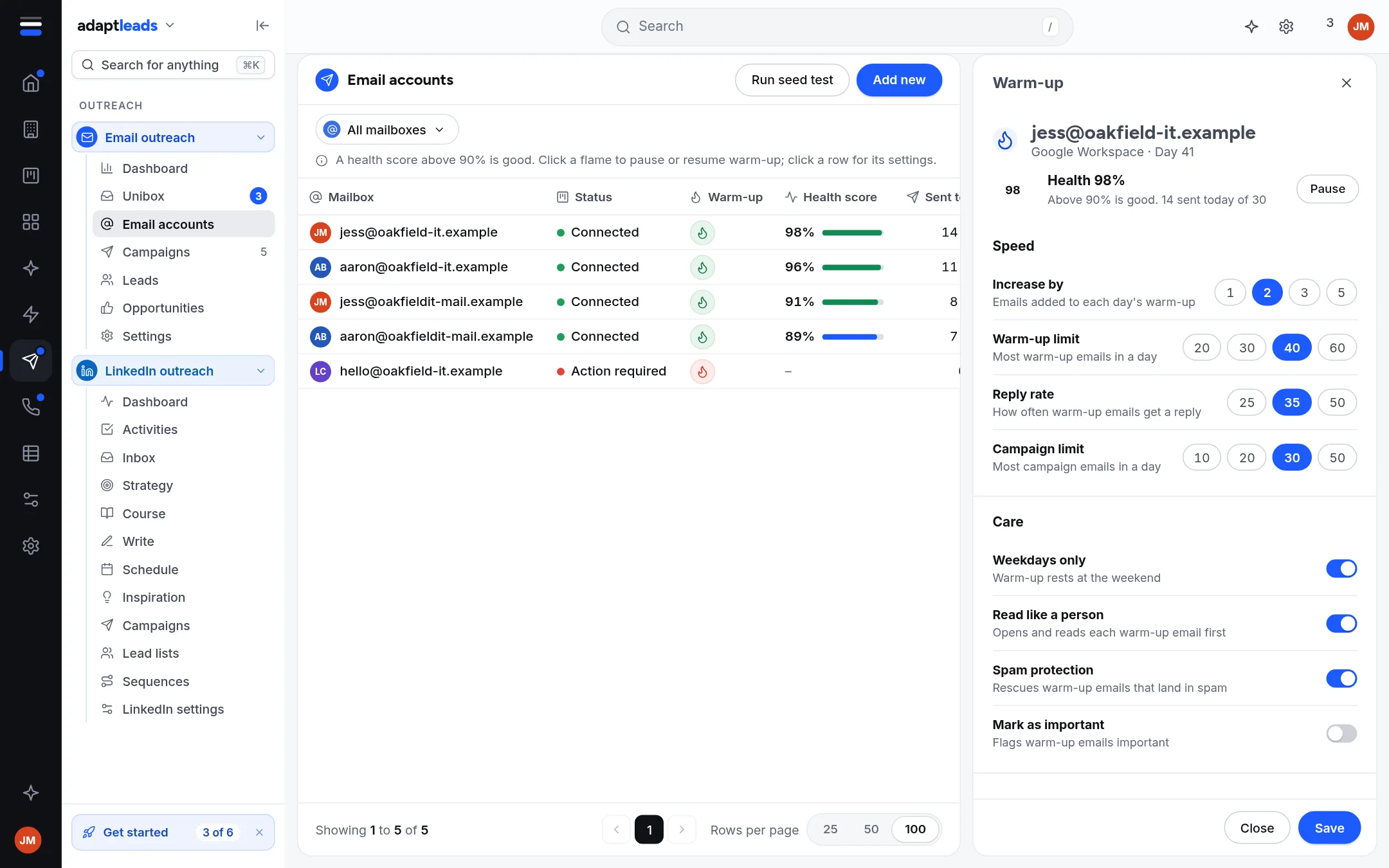
The defaults are a good start: 1 more email each day, up to 10 a day, and replies to about 30%. Weekdays only rests it at the weekend. Skip the slow ramp is only for a mailbox that is already warm. Raising a speed setting asks you to confirm, because it sends more real email. An empty box is saved as the grey number shown inside it.
What you will see
The health ring reads Not measured yet until there is warm-up mail to measure. That is not a bad score. Above 90% is good.
A campaign's launch checklist shows Mailboxes warmed up with how many of its mailboxes have warm-up on. It does not stop you launching if they have not. Waiting is your choice, and the safe one.
Warm-up is not a guarantee
It helps. It does not make an unauthenticated domain, a poor list or spammy copy land in the inbox. See Deliverability basics.
More detail is in Warm up a mailbox. If the flame will not turn on, see My email is not sending.