Connect your Google account
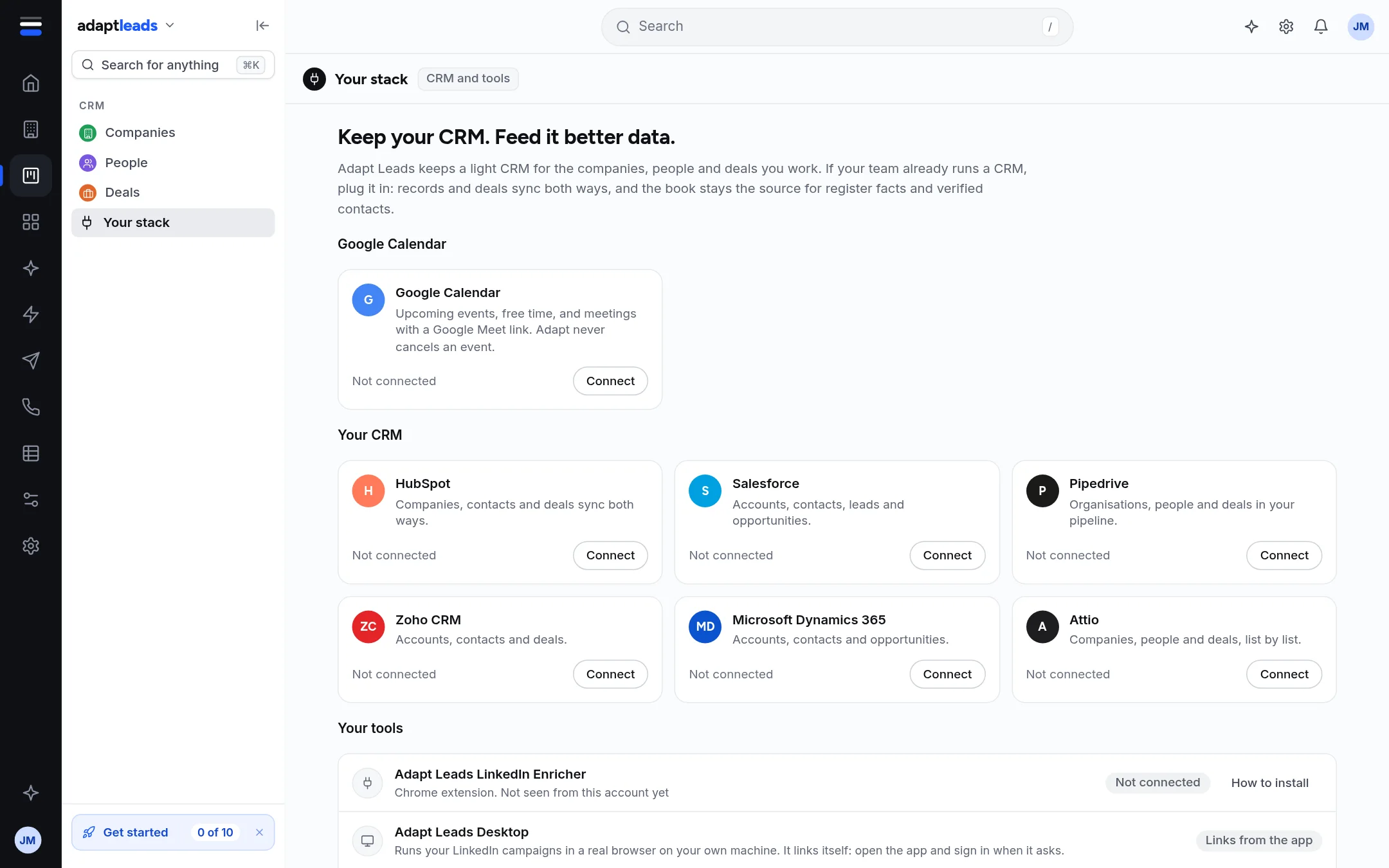
Connect Google Calendar on Your stack so Ask Adapt can see your events and find free time.
You will have Google Calendar connected, so Ask Adapt can list your events, find free time and prepare a meeting for you to approve.
This is separate from signing in with Google. See Sign in with Google.
Steps
- Open Set up and find the card Connect your calendar, then press Connect it. Or open Your stack under CRM in the side menu.
- On the Google Calendar card press Connect.
- Sign in to Google and allow the access it asks for.
- You return to Your stack with a message that says it connected, or why it did not.
- The card now shows your calendar address and a Disconnect button.
What it gives you
- Ask Adapt can list upcoming events and find free time inside working hours. Try "What is on my calendar tomorrow?" in the Ask box.
- It can propose creating an event, or rescheduling or changing the invitees on one Adapt created. Each is an approval card, and a meeting can carry a Google Meet link. See Approval cards: what Adapt proposes and what you approve.
- It never cancels an event. It offers to reschedule.
What it does not do yet
Your Google events do not show on the Home Agenda or on the Schedule page. Both say so.
Disconnect
Press Disconnect on the same card. Ask Adapt then says "Your calendar is not connected yet" when you ask about meetings.
If something goes wrong
- The card says "Calendar connection is not on this account": your workspace is not set up for it. Email hello@adaptleads.co.uk.
- Google shows an error or you cancel: you return to Your stack with the reason. Press Connect again.
- For the full list of messages see Integrations and Your stack problems, by message and Ask Adapt and voice problems, by message.