Make a list
Create a named list, optionally inside a campaign folder, from the Lists area or from ticked rows.
You will have a named list, empty or already holding the businesses you ticked.
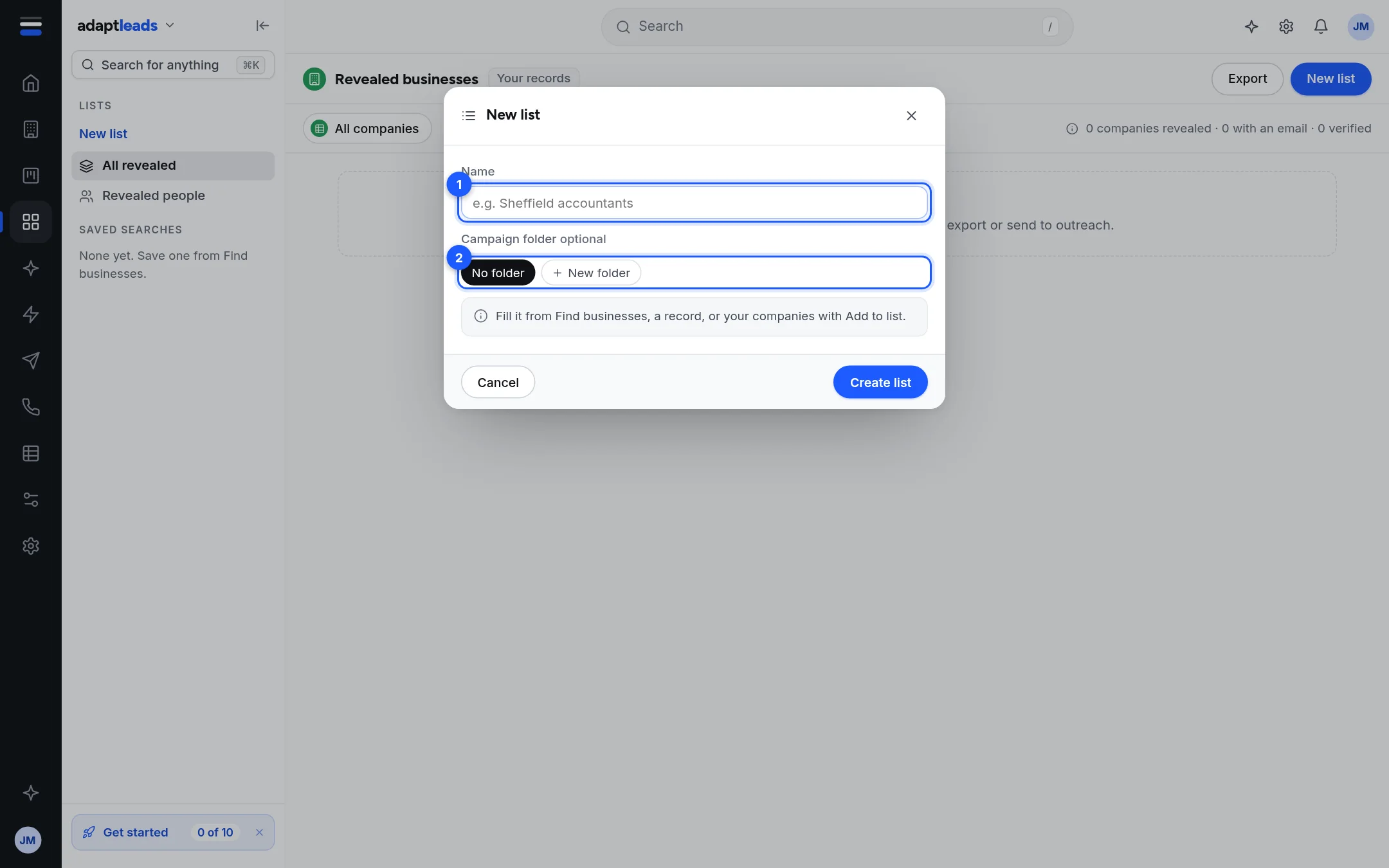
Steps
- Open Lists in the left rail.
- Click New list. (If you have rows ticked on Businesses, choose New list... in the Add to list menu instead.)
- Type a Name, up to 80 characters, for example "Sheffield accountants".
- Under Campaign folder choose No folder, an existing folder, or New folder and type its name.
- Click Create list. If you started from ticked rows the button says "Create and add N".
What happens next
An empty list opens and says "This list is empty". Fill it with Add to list from Businesses, from a record, or from an uploaded file. See Add businesses to a list from Find. If you started from ticked rows, they are added at once and the page says "Added N businesses to {name}".
If the name is taken
You cannot have two lists with the same name. Type one you already have and Adapt opens that list instead: "You already have a list called {name}. Here it is." If it was archived, it comes back.
Folders
A folder is the campaign folder you name when you make a list. Lists with no folder sit under No campaign. Folders cannot be made or renamed on their own.
From an uploaded file
On Enrich a list, after matching, Save N matches as a list opens the same box with the file's name suggested. See Enrich a whole list.
What you cannot do
- Rename a list, move it to another folder or take a business off it.
- Delete a list. It can be archived, which keeps its businesses and hides it. Ask Adapt can do that after you approve a card.
Ask Adapt can do it
Say "Make a list called Sheffield accountants from the first 100 accountants in Sheffield". It prepares an approval card and creates the list after you approve. See Get 100 leads by asking.
If something goes wrong
See Record and search problems, by message. If you are tidying up, remember there is no remove control: make a new list with only the businesses you want.