Use a saved prompt
Start a question from the slash menu or the quick prompts under the Ask box, and edit the quick prompts.
You will have started a question without typing it out, from a prompt Adapt offers or one you saved.
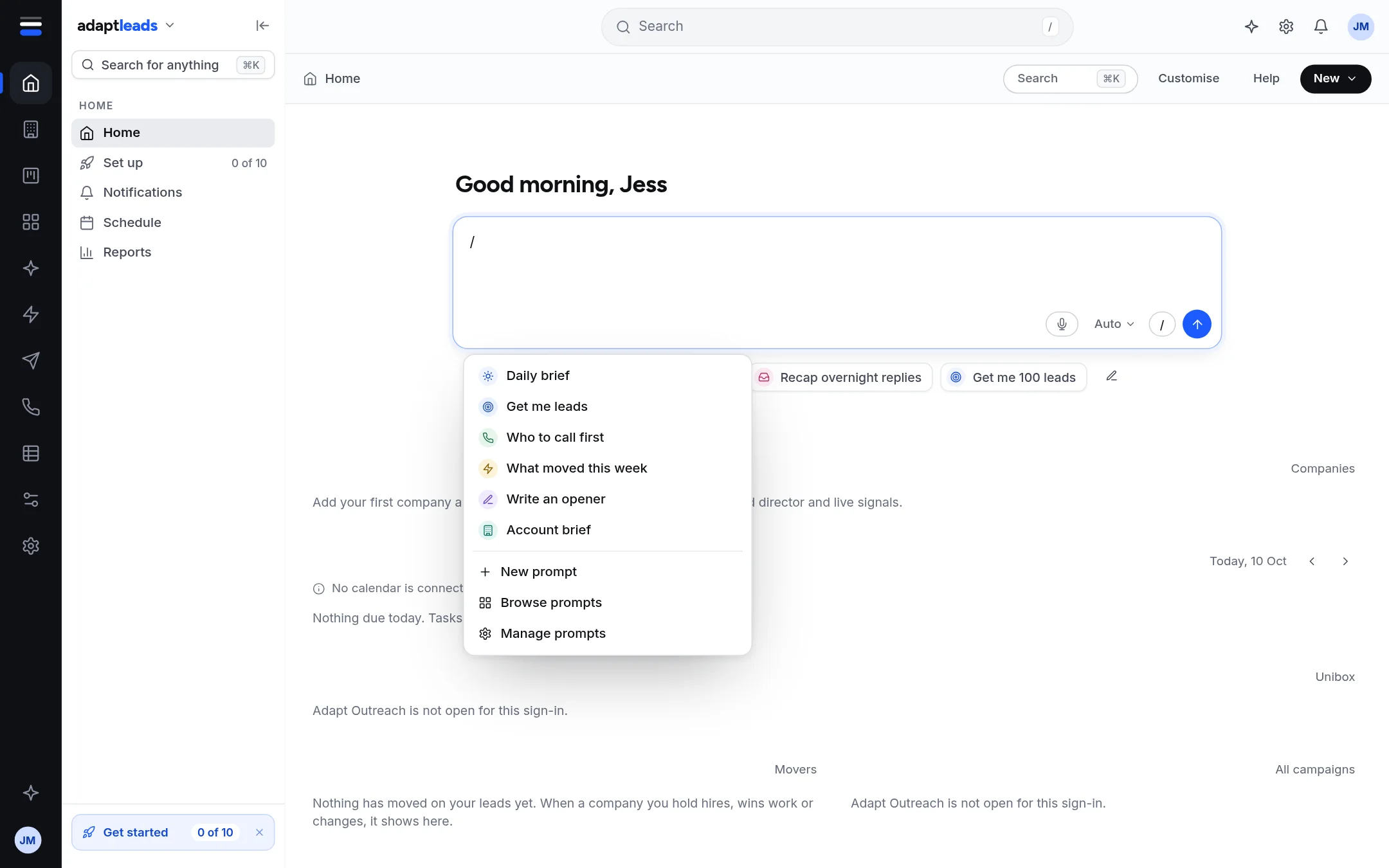
Use the slash menu
- Click in the Ask box and type / on its own, or press the / button.
- Pick a prompt. It starts a new chat with that question.
The list holds Daily brief, Get me leads, Who to call first, What moved this week, Write an opener and Account brief. Two of them name a real business from your movers when you have one.
Use a quick prompt
The pills under the Ask box start as Prep for my next meeting, Recap overnight replies and Get me 100 leads. Click one to ask it.
Change the quick prompts
- Press the pencil at the end of the row. Or on Home press Customise and scroll to Quick prompts.
- Edit the Label (up to 40 characters) and the Prompt (up to 500).
- Reorder with the arrows and remove with the x. Press Add a prompt for another. You can have six at most.
- Press Done.
Quick prompts are saved in this browser, per account. They do not follow you to another computer. See Customise your Home page.
What does not work yet
New prompt and the prompt library in the slash menu only show a message. Use the quick prompts instead.
A good prompt
Name the thing and the place: "Write an opener for Marsh and Keel", "Who should I call first today in Sheffield?". The built-in Prep for my next meeting says "If no calendar is connected, use my tasks and CRM and tell me how to connect it." See Connect your Google account.
What happens next
The answer appears in the chat, and the chat is kept. See Find an old chat. Any change it proposes needs your approval: Approve a proposal card.
If something goes wrong
If a quick prompt is missing on another computer, it was saved in the first browser only. See Ask Adapt and voice problems, by message.