Add leads to an email campaign
Pick leads from your pool, upload a CSV or paste addresses into a campaign.
You will have people in a campaign, ready to be emailed once you launch. Adding them sends nothing.
Steps
- Open Campaigns and open your campaign.
- Stay on the Leads tab and click Add leads.
- Choose one way in:
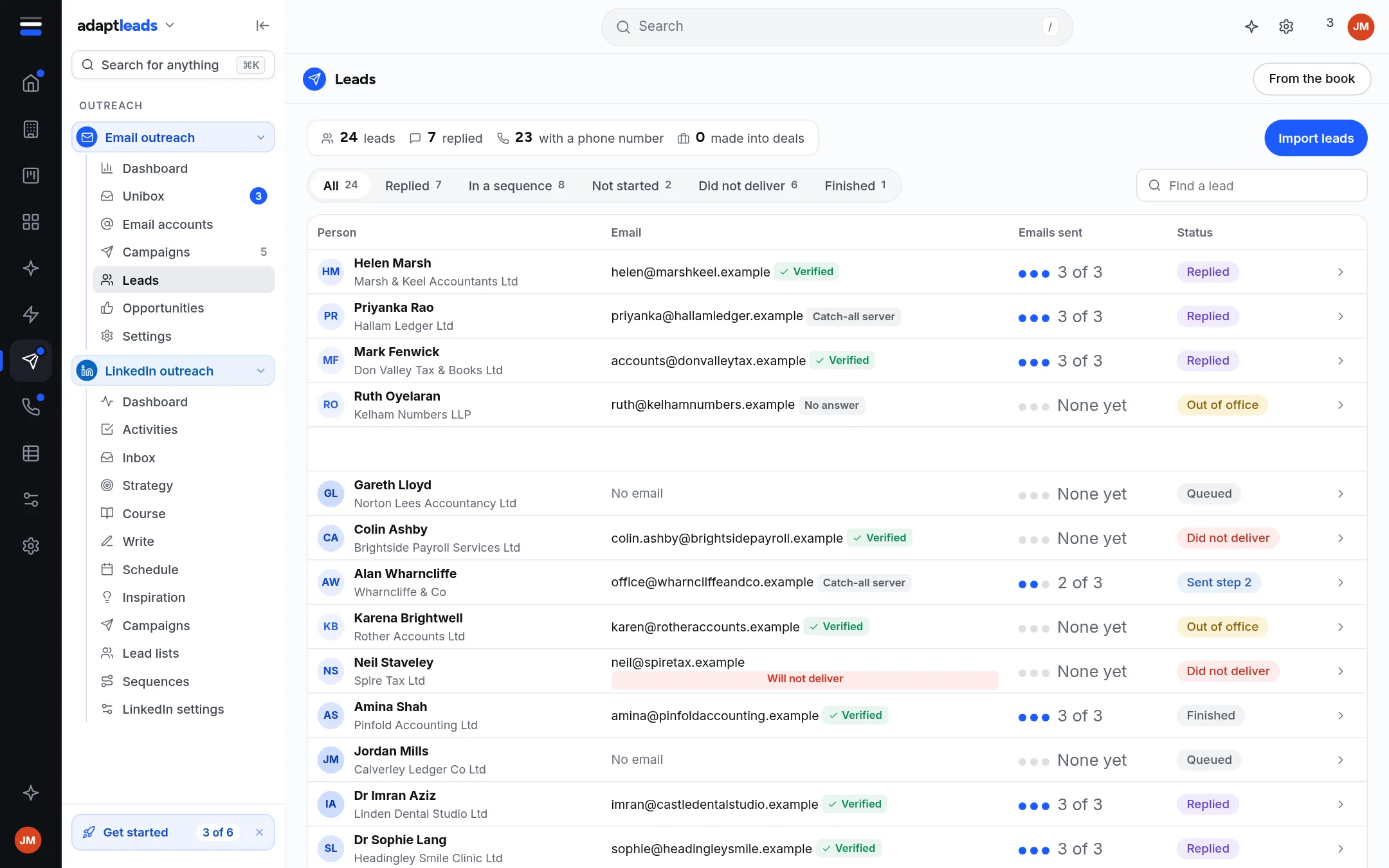
- From your Outreach leads: pick from your Email leads pool (the first 200 are shown). Leads with no email address are greyed.
- Upload a CSV: choose a file with headers in the first row and an Email column. Check how Adapt matched the columns, change any with the drop-down, then click Import N leads.
- Paste email addresses: one per line.
"Helen Marsh" <helen@example.com>keeps the name.
- Tick the people and click Add.
From a list in Adapt Leads
In Adapt Leads, open a list or a search, tick the businesses, choose Send to, then Adapt Outreach. They join your Email leads with their record. Come back to the campaign and choose From your Outreach leads.
What you will see
A result such as "12 new leads added", with counts of those already there, those with no email address, and those blocked because they are on your do-not-email list. Those are never emailed.
If you add leads to an Active campaign, Adapt asks first, because they will be emailed at the next send.
Who you email
A list from anywhere still has to be lawful to email. Companies and sole traders are treated differently: read The rules for cold email, PECR and UK GDPR.
More: Import leads for email from a CSV, a paste or a list. If a lead will not add, see Email problems, by message.