Add a deal
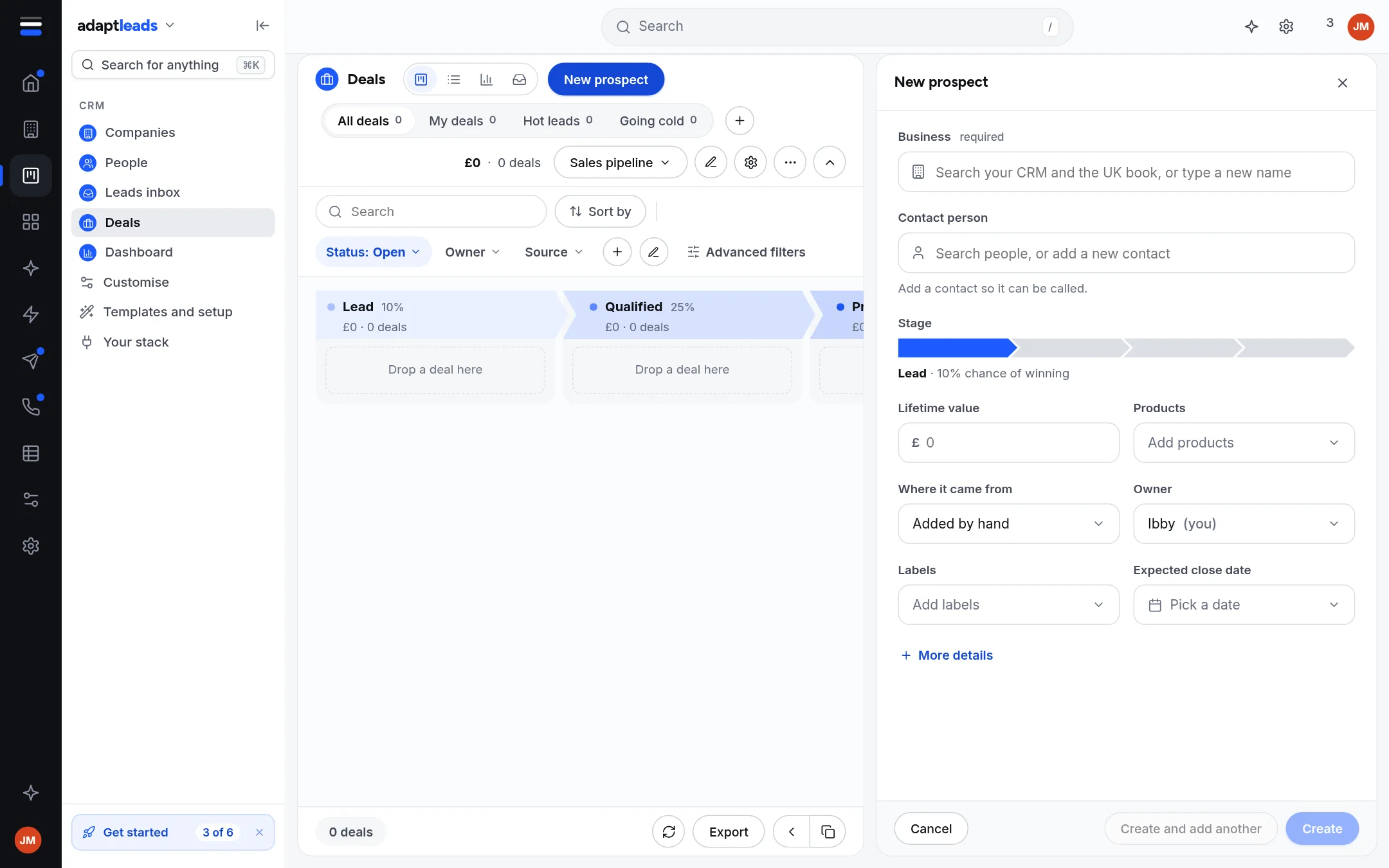
Create a company, a contact and a deal in one panel, with New prospect on the Deals page.
You will have a deal in a stage, linked to a company and, if you add one, a contact.
Steps
- Open Deals and press New prospect. A panel opens.
- In Business, start typing. Adapt searches your CRM and the UK book. Pick a result or type a new name.
- In Contact person, search your people or add a new one. Add a contact if the deal is to be called.
- Move along the Stage bar to the stage.
- Fill Lifetime value, Products, Where it came from, Owner, Labels and Expected close date as you wish. More details shows the rest.
- Press Create, or Create and add another to stay in the panel.
What happens
- Nothing is added until you press Create.
- Create makes the company (if new), the person (if new) and the deal, one at a time. If a later step is refused, it takes back what this click made. Records are hidden, never deleted.
- A UK book result brings only its name, place, website and a link back. Its phone numbers and address stay in the book until you open the record there.
- Owner defaults to you.
From another place
New organisation on Companies and New contact on People open the same panel in other modes. A deal can also come from an email reply: Create deal in the Unibox hands it to your CRM. See Read and answer an email reply.
A new CRM starts empty. If the page asks you to set it up first, see Set up your CRM from a template. If the save is refused, the message says why: CRM problems, by message.
Next: Move a deal through a pipeline. More: Add a deal with New prospect.