Add a task
Add a task to a deal, company or person, or from the Schedule, and tick it off when it is done.
You will have a task with a date, on a record and on your Schedule.
On a record
- Open the company, person or deal.
- Press Task. Give it a title and a date.
- Save it.
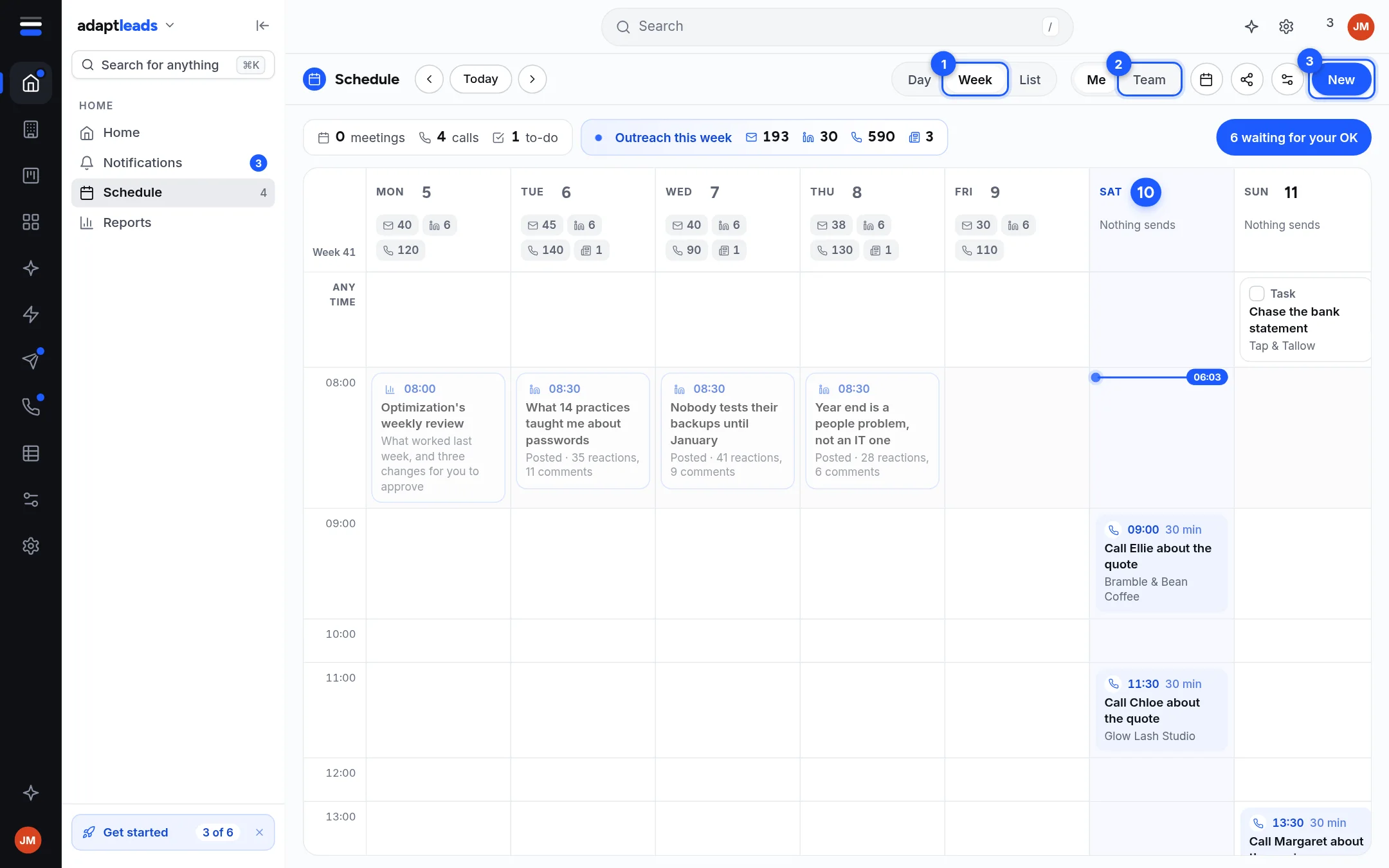
It appears on the record and on the Schedule under Any time on its day, because a task has a date and no time. A Meeting is a task with a date. There is no calendar invite.
From the Schedule
- Open Schedule under Home. Choose Day, Week or List.
- Press New.
- Give it a title and date. A task on a record is written to the CRM. One with no record is kept on this device only, and the page says which.
Tick it off or move it
Tick a task to complete it or drag it to move it. Both write to the CRM, or to the device for a device task. Me and Team pick whose tasks you see.
What does not work
- Tasks across your records says it is not connected if the CRM does not answer. The Schedule then shows device tasks and LinkedIn posts. A record's own tasks are always on its page.
- Share your schedule is not connected. Nobody sees yours.
- Google Calendar events and call backs are not drawn on the Schedule. Call backs are in the Caller console: Call backs.
More: Tasks and the Schedule.