Turn on dark mode
Choose Dark, Light or System in Settings, Appearance, or from the product name menu.
You will have the whole app, charts included, in dark colours, saved to your account.
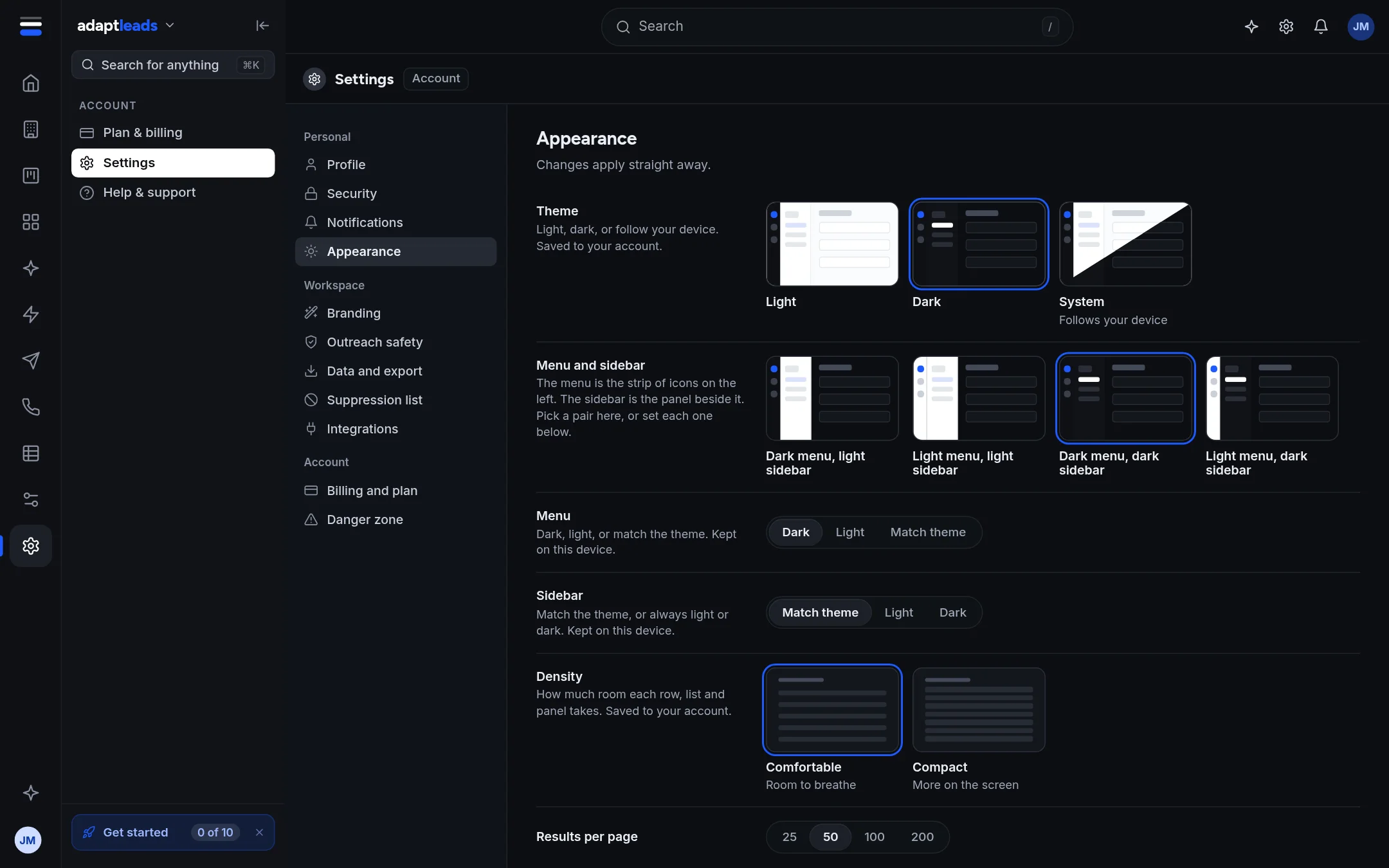
Steps
- Open Settings from the cog on the top bar, or from your initials at the bottom of the rail.
- Choose Appearance.
- Under Theme press Dark. The app switches at once.
The other choices are Light and System. System follows your device and changes when your device does, for example at sunset.
A shortcut
Open the product name menu at the top of the side menu. It holds the Theme switch, so you can change it without going to Settings.
Where it is saved
The theme is saved to your account, so it follows you to another browser. The page tells you so: "Saved to your account". If the change could not reach your account, it says "Not saved to your account yet. It is sent again next time you open Adapt Leads." The change still shows on your screen.
Menu and sidebar colours
Below Theme you can also pick the colours of the menu (the strip of icons) and the sidebar (the panel beside it). There are four ready pairs, or set each one yourself: Dark, Light or Match theme for the menu, and Match the theme, Light or Dark for the sidebar. These are kept on this device only, because the server does not keep them yet.
Ask Adapt can do it
Ask "Switch to dark mode". It shows an approval card and changes the theme after you approve. See Approval cards: what Adapt proposes and what you approve.
What it does not do
There is no accent colour setting; the app has none. Your logo and colours for your own pages are a different thing: see Branding: your logo and colours.
If something goes wrong
If the theme does not stick, reload the page and check Appearance says "Saved to your account". If it does not, ask on Help and support. To make rows smaller as well, see Switch to compact view.