Turn a signal into an opener
Use the Opener button on a signal, or the Write mode of the Ask box, to get a first line for you to edit and send yourself.
You will have a first line, written from something that really happened at a business, that you can copy into your own message.
Steps
- Open Adapt Insights, then Feed, and find a card. Read the headline and the date. A signal says something happened, not that the business wants to talk.
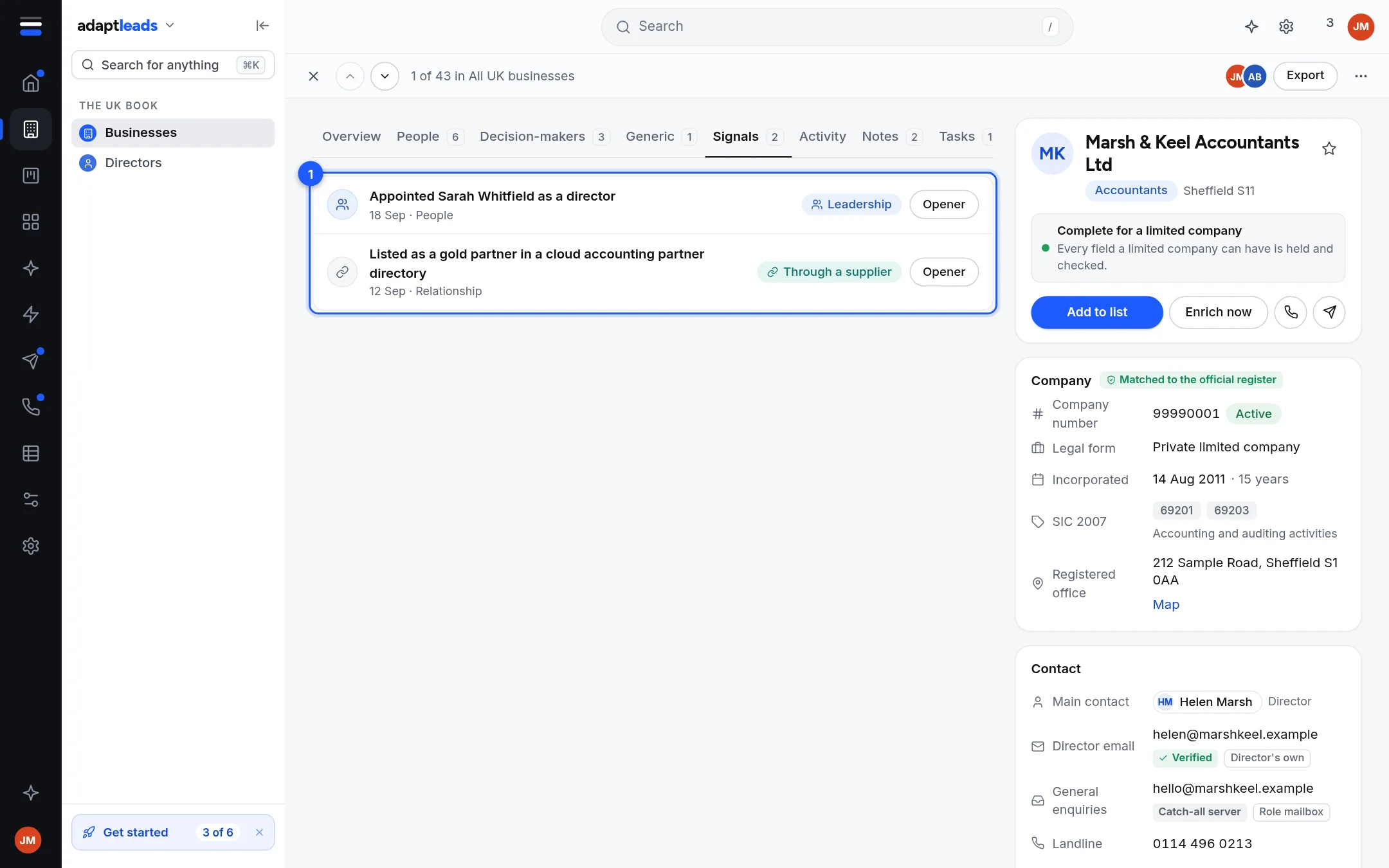
- Click View company. The record opens on its Signals tab.
- On the signal row click Opener. Ask Adapt opens with a request to write a first line from that story.
- Read the answer. Change it so it sounds like you, and refer to the event in your own words.
- Copy it into your email or LinkedIn message. Ask Adapt never sends it for you.
Other ways in
- In the Ask box, press the mode button (it says Auto) and choose Write. Type the business name, for example Marsh & Keel. It becomes "Write an opener for ...".
- Press / in the Ask box and pick Write an opener. If you have a mover, it names a real business.
- On the record's Overview, Write an opener from this opens Ask Adapt.
See The Ask box and its modes and Prompts and the slash menu.
Put the business on a list
- On the Feed card press Get in touch, then Add to a list, and pick or create one.
- Send the list to a campaign or the caller console from the Lists area. See Add businesses to a list from Find.
Check before you send
A signal is not consent
For cold email and calls, PECR and UK GDPR still apply. This is guidance, not legal advice. See PECR and UK GDPR in plain words for a B2B seller.
If a card says Matched by name, check the story, read the story first.
If something goes wrong
If Ask Adapt says it cannot answer, a quick keyword answer stands in and says so. See Ask Adapt and voice problems, by message.