Write a LinkedIn post
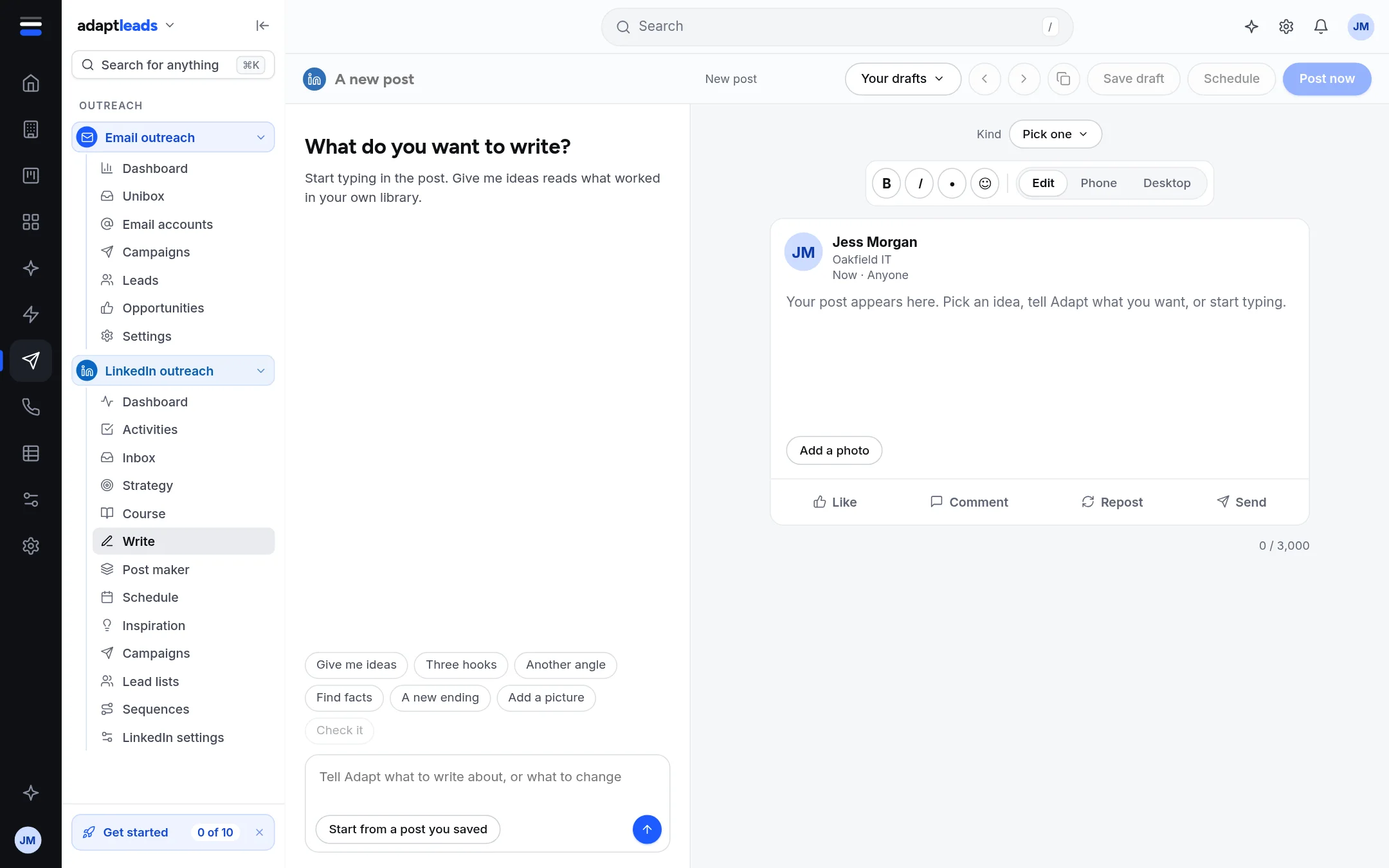
Write a post in Write, see it as LinkedIn will show it, run the checks and save it as a draft.
You will have a post saved as a draft, checked against your publishing rules. You write the words.
Steps
- Open LinkedIn outreach, then Write.
- At the top, choose a Kind (one of your kinds of post from Strategy and plan).
- Type your post. The limit is 3,000 characters, counted at the bottom.
- Press Phone or Desktop above the preview to see where LinkedIn folds the text ("see more"). Press Edit to go back.
- Press Check it, or just keep typing, because the checks also run by themselves.
- Fix anything marked in red. If dashes are found, a button offers Use the version without dashes.
- Press Save draft.
The checks
- In your browser: the first line fits on a phone (about 140 characters), one sentence per line, space between lines, no hashtags, no link in the post (put it in the first comment).
- From the server: your publishing rules and your library. Anything that Stops it going out is marked in red. A post that breaks a publishing rule is not sent, even on a schedule.
Help from Adapt
Give me ideas offers starting hooks drawn from posts in your own library. Add a picture opens the The Post maker. A LinkedIn post from Adapt cannot carry that picture yet, so download it and add it on LinkedIn. The other writing buttons say Not connected yet.
What you will see
Your text is kept in this browser as you type, but it is on the server only once you press Save draft. The draft sits in your drafts on the Schedule with no time. A post that already went out is never saved or sent again from here.
Next: Schedule LinkedIn posts. More detail: Write a LinkedIn post.