Schedule LinkedIn posts
Your posts on a calendar, list or board, with drafts in a rail you can drag from.
Schedule shows every post you have: drafts, scheduled posts and posts that went out.
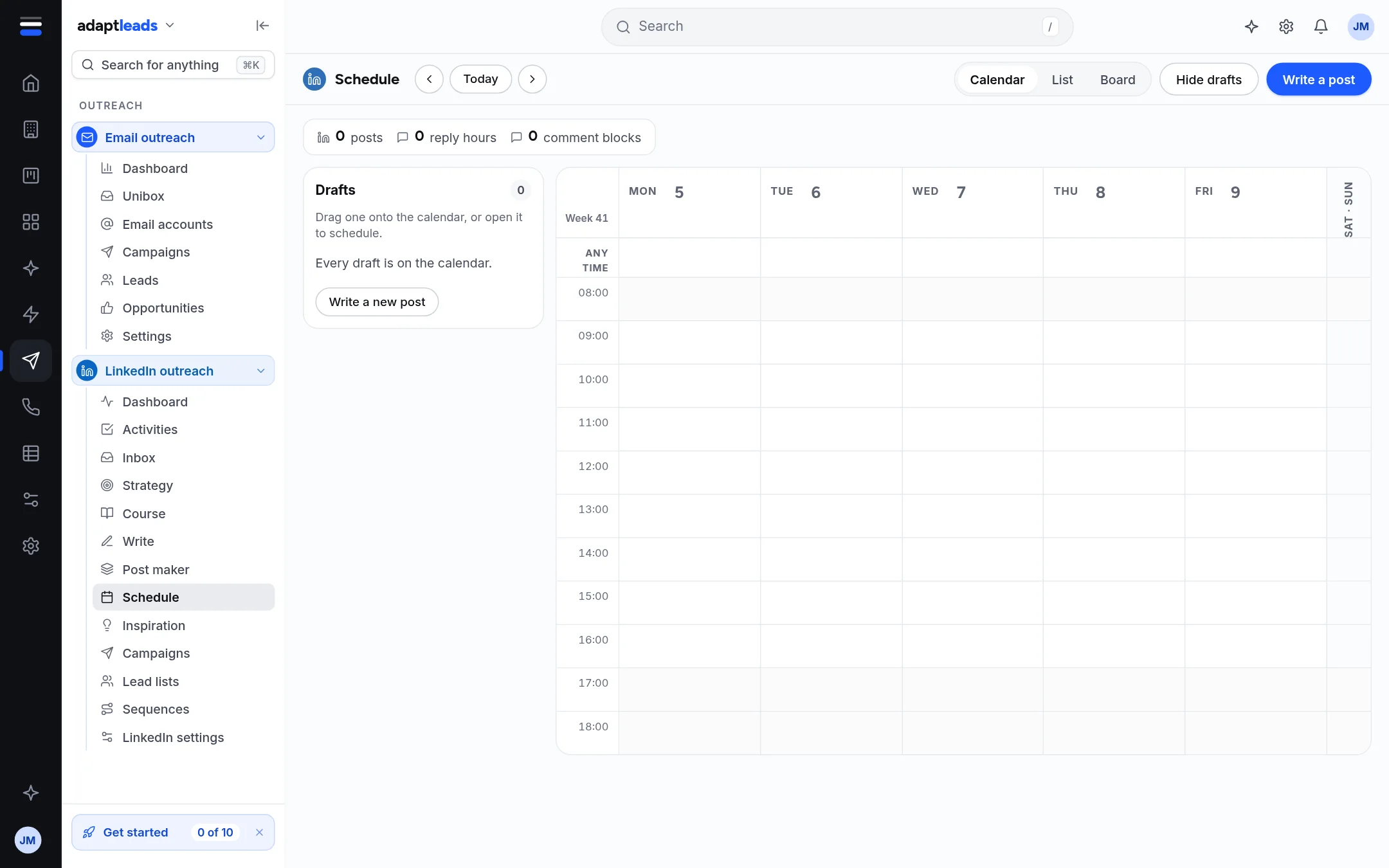
The views
Calendar is a week, with Today and arrows to move. List and Board show the same posts another way. Hide drafts clears the rail. A summary line counts posts, reply hours and comment blocks.
What you can do
- A post with a time sits on the calendar at that time. A draft with no time sits in the Drafts rail.
- Drag a draft onto the calendar, or open it and pick a time, to schedule it. Drag a scheduled post to move it.
- Click a post for its menu: Edit in Write, Move it or Schedule, and Take it off the calendar. Taking it off puts it back in your drafts and publishes nothing, after you confirm.
- Write a post opens Write.
A post that went out shows its time and, when Adapt Desktop has read them, its numbers. Click it and choose Open on LinkedIn. A post that has gone out is never moved, because that would put it out twice. A post whose time passed with a fault says what went wrong. See How LinkedIn posts go out.
Nothing goes out unless LinkedIn posting is connected
A scheduled post waits on the calendar until posting is connected. The page tells you which it is.