Make a list
Create a named list, put it in a campaign folder, and fill it from Find, a record or an uploaded file.
You will have a named list, ready to fill or already holding the businesses you ticked.
Steps
- In the Lists area, click New list. (You can also choose New list… in an Add to list menu.)
- Type a Name, up to 80 characters, for example "Sheffield accountants".
- Under Campaign folder choose No folder, an existing folder, or New folder and type its name (up to 80 characters).
- Click Create list. If you started from ticked rows the button says "Create and add N".
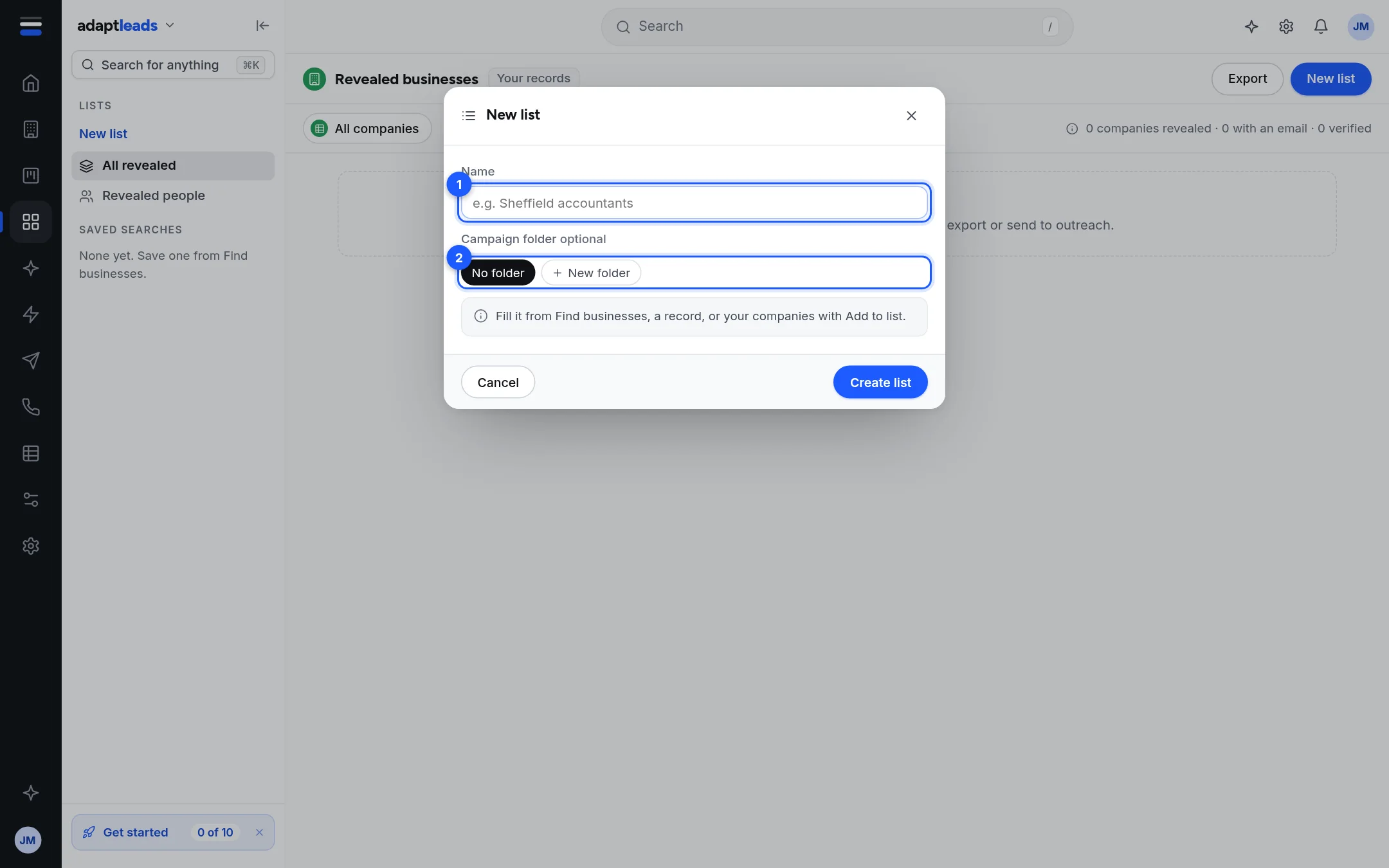
- Name.
- Campaign folder. Optional.
What happens next
An empty list opens, with "This list is empty". Fill it from Businesses with Add to list, from a record, or from an uploaded file. See Add businesses to a list.
If you started from ticked rows, the businesses are added at once and the page says "Added N businesses to {name}".
If the name is taken
You cannot have two lists with the same name. If you type a name you already have, Adapt opens that list instead and says "You already have a list called {name}. Here it is." If it was archived, it comes back.
From an uploaded file
On Enrich a list, after matching, Save N matches as a list opens this same box with the matches in it and the file's name suggested. See Read your Enrich a list results.