The Unibox: read and sort replies
Where every reply lands, how folders, tags and filters work, and what you can and cannot do with a reply.
The Unibox lists every reply to your campaigns from every connected mailbox. Each is tagged when it arrives.
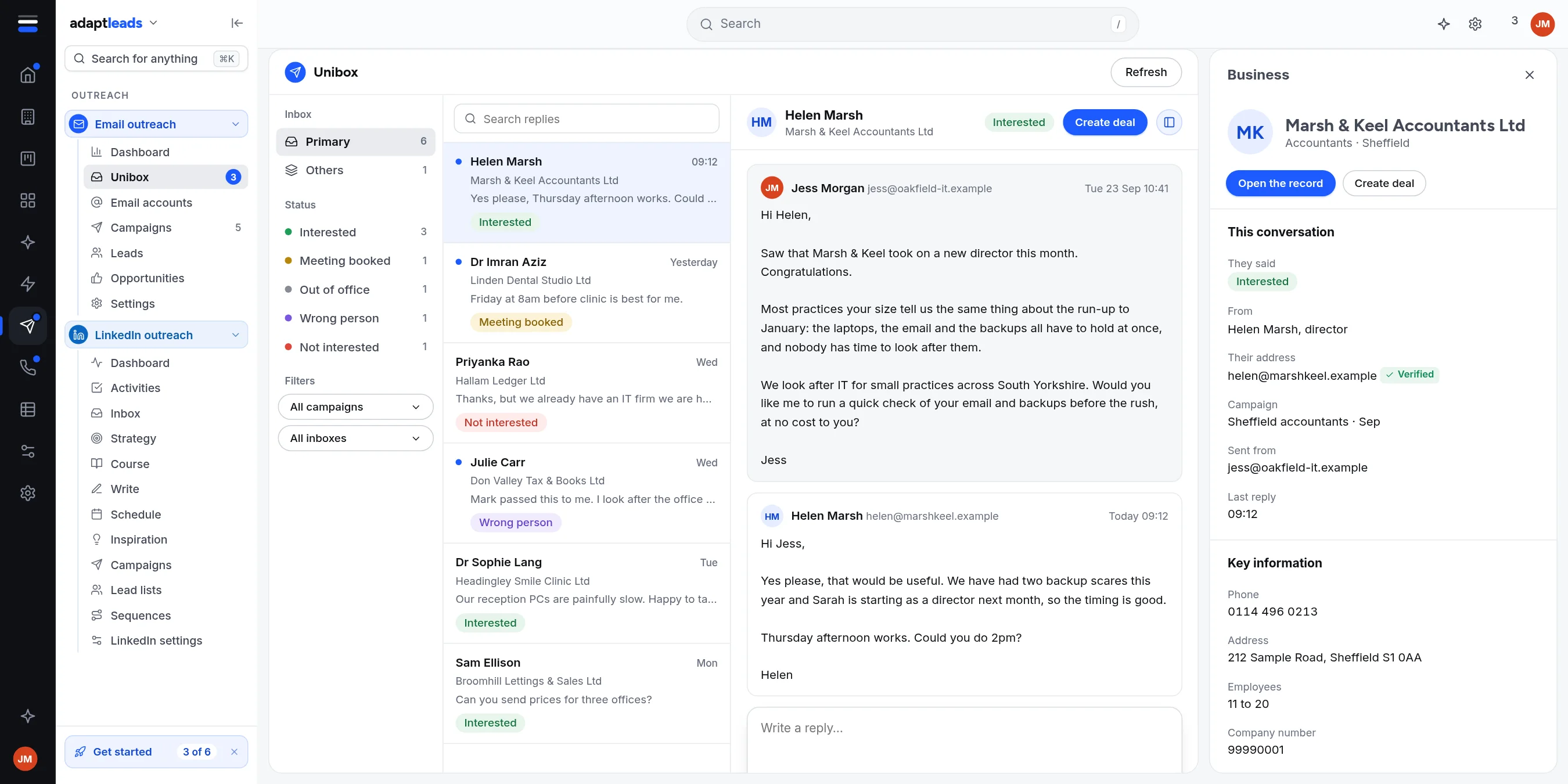
The parts
| Part | What it does |
|---|---|
| Inbox folders | Primary (people in your campaigns) and Others |
| Status | Interested, Question, Out of office, Not interested always show. Meeting booked, Wrong person, Unsubscribe and Did not deliver appear once a reply has one. |
| Filters | All campaigns, All inboxes, and Search replies |
| Thread | The email you sent and the reply, with the reason it was tagged |
| Contact panel | Their details, the lead and opportunity held for that address |
| Refresh | Checks for new replies |
Tags: Interested, Meeting booked, Question, Out of office, Wrong person, Not interested, Unsubscribe, Did not deliver, Not tagged. Turn tagging off in Email outreach settings.
What you can do
- Open a reply. Reading never changes it. Use ... then Mark as read.
- Mark as interested or Create deal: Opportunities from email replies.
- Add to do-not-email list from the ... menu: Unsubscribes and the do-not-email list.
- Write a reply in the box. Click Copy, or Open in mail app, which opens a reply to that address with your text. Send it from the mailbox it came to.
Out of office and bounces
An out-of-office counts as a reply and no more follow-ups go to that lead. A bounce notice is tagged Did not deliver and the page says the email did not reach them.
When replies are missing
Replies are read from each mailbox over IMAP. If a mailbox's sign-in is refused, its replies and bounces are not read until it is fixed. Check its status on Email accounts.