Connect a mailbox
Connect a Google or other IMAP and SMTP mailbox to send campaigns from, and what to do when it will not connect.
You will have a connected mailbox that campaigns can send from. Connecting signs in to check the password. It sends no email.
Before you start
- The mailbox email address and, for Gmail or Google Workspace, a 16-character app password. Google refuses your normal password over IMAP and SMTP. Turn on 2-Step Verification on the Google account first, then make the app password.
- For any other provider: the IMAP host and port, the SMTP host and port, and the password.
Steps
- Open Email outreach, then Email accounts.
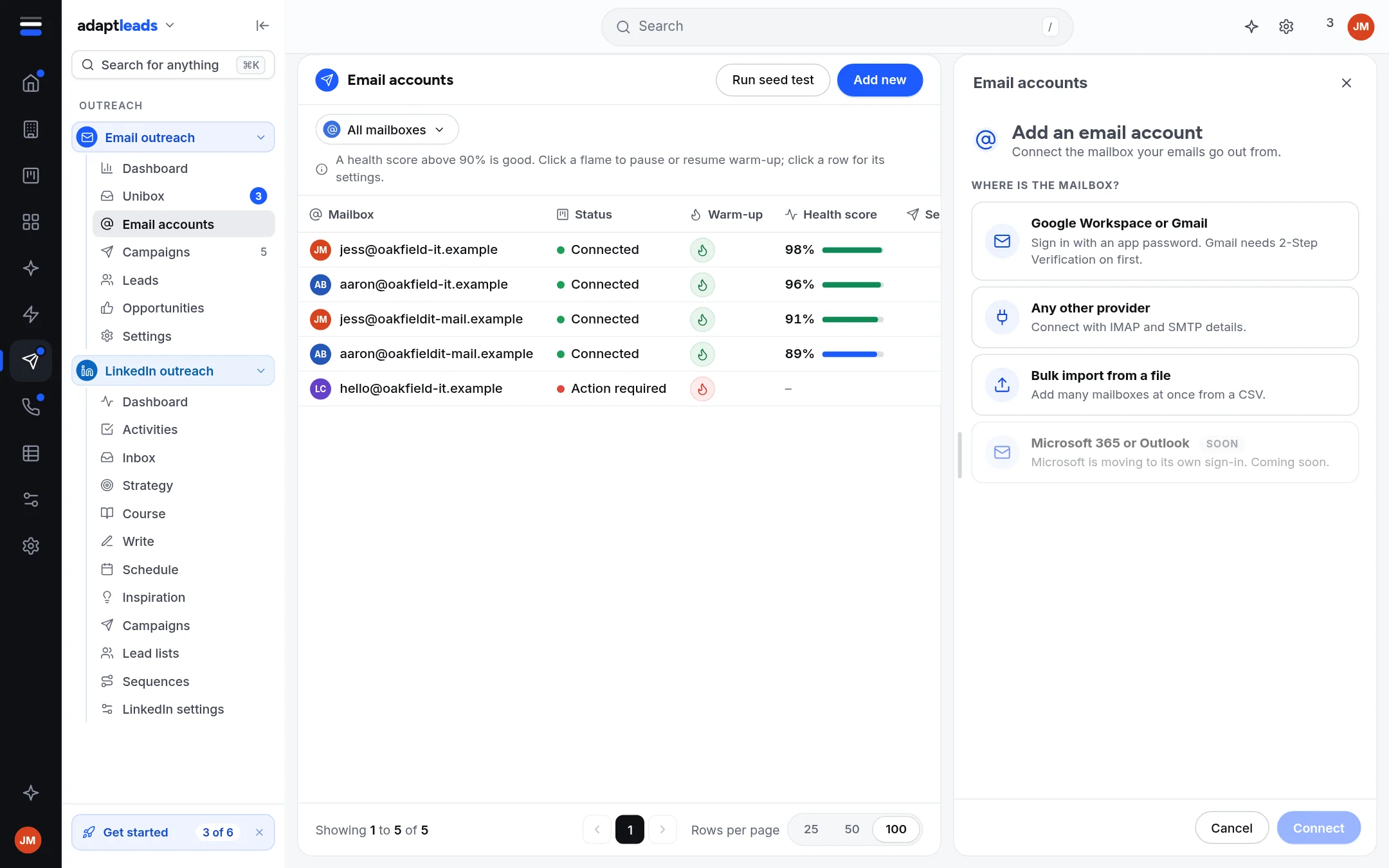
- Click Add new. A panel opens.
- Under Where is the mailbox? choose Google Workspace or Gmail or Any other provider. The two greyed options, Bulk import from a file and Microsoft 365 or Outlook, say Not yet.
- Type the Email and, if you like, a Display name.
- Under What it is for, choose Sending mailbox (sends your campaigns) or Warm-up inbox (only plays the other side of warm-up and never sends a campaign).
- Paste the password. For Google the server settings are filled in. For any other provider, type the receiving host (IMAP) and sending host (SMTP), the ports, and the security (SSL or STARTTLS).
- Click Connect. A confirmation says that nothing is sent. Confirm it.
What happens next
The mailbox appears in the list as Connected, with warm-up off. Turn warm-up on with the flame: see Warm up a mailbox. It sends only the campaigns you choose it for and launch.
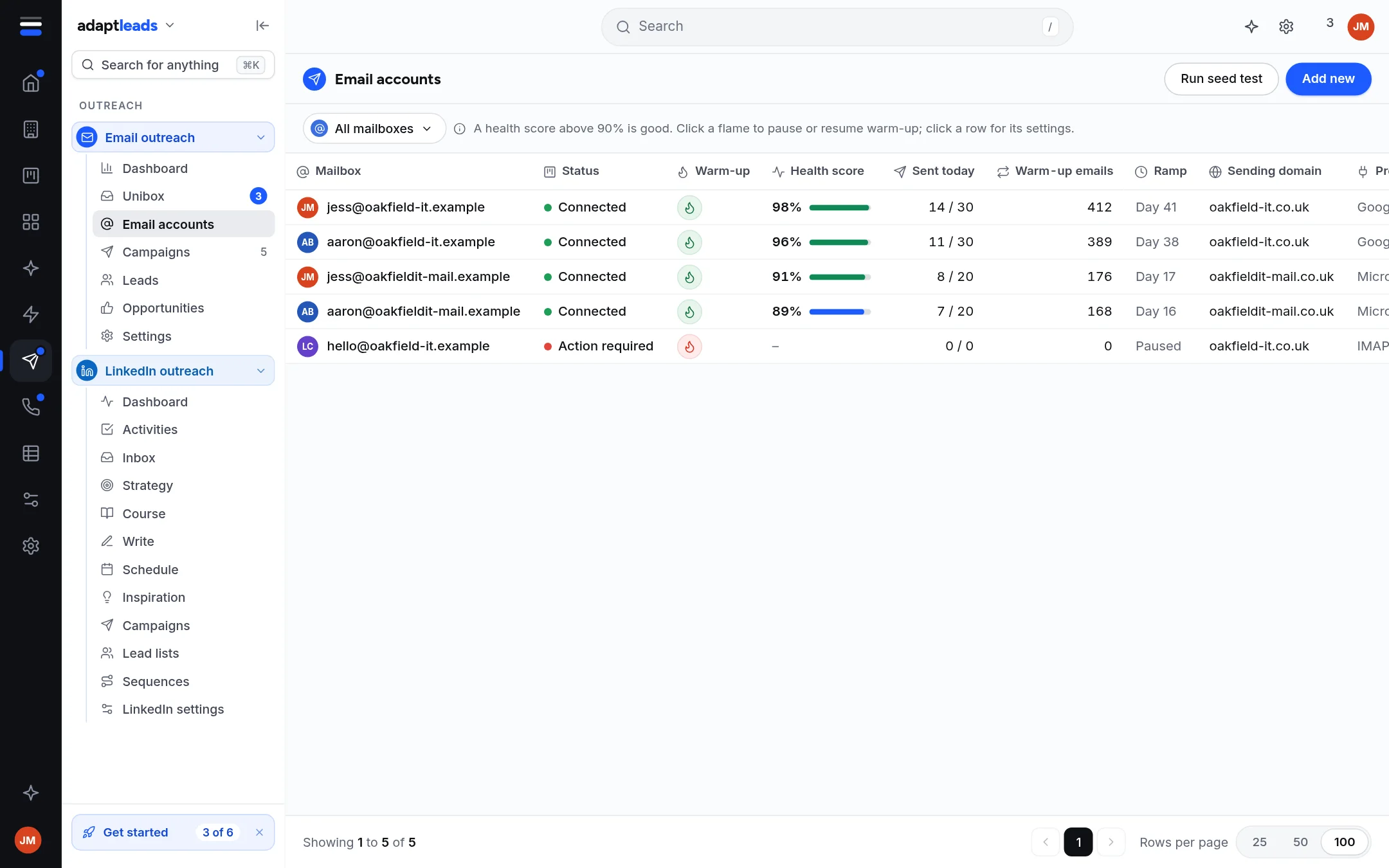
The Email accounts page
| Part | What it does |
|---|---|
| Filter | All, Sending, Warm-up inboxes, Needs attention |
| Status | Connected, Failed, Needs sign-in or Not checked yet |
| Flame | Turns warm-up on or off. Red means fix the connection first. |
| Health score | A percentage once measured. Above 90% is good. Before then it reads Not measured yet. |
| Row menu | Re-test the connection (sends nothing), Pause, Activate, Warm-up and settings, Remove |
| Run seed test | Sends a campaign's step 1 to your own warm-up inboxes: see Deliverability basics |
If it does not connect
The panel says why, in plain words.
| Message | What to do |
|---|---|
| The sign-in was refused | Wrong password. Use an app password for Gmail. |
| That mail server could not be found | Check the host name. |
| The mail server refused the connection | Check the port. |
| The mail server did not answer in time | Try again, then check the host. |
| The secure (TLS) connection failed | Try the other security setting. |
Open the mailbox row and use Connection settings to correct it. Save and re-check signs in again and sends nothing. More in My email is not sending.
Pausing and removing
Pause stops it sending and stops its warm-up. Active campaigns using it stop sending from it. Remove archives it from your list and leaves the mailbox itself untouched. You can connect it again.
Mailboxes that sign in through a secure browser, such as Outlook or Yahoo, show **Needs sign-in, not available in Adapt Leads yet**. They cannot warm up or send from the app.