Customise your Home page
Hide, show, move and resize tiles, change your quick prompts and move the chat.
You will have a Home that shows only what you want, in the order you want.
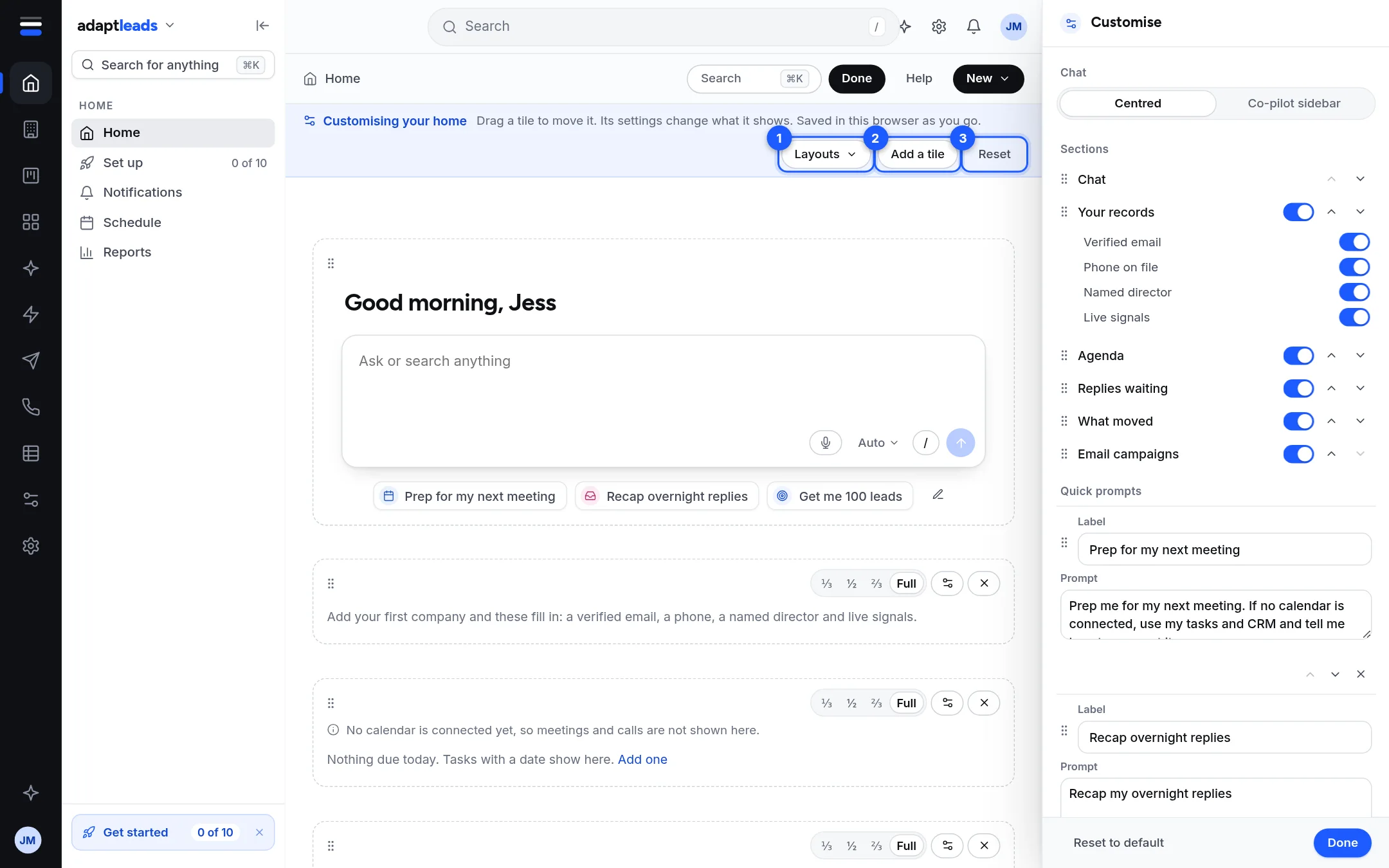
Steps
- On Home press Customise at the top right. A layout bar appears and a Customise panel opens on the right.
- In the panel, under Chat, choose Centred or Co-pilot sidebar. With the sidebar you also pick Left or Right. The chat then stays open beside your tiles. On a narrow screen it stays centred.
- Under Sections, use the switch to show or hide a tile. Use the up and down arrows or drag the grip to reorder. Your records has four extra switches: Verified email, Phone on file, Named director, Live signals.
- Under Quick prompts, edit the label and prompt of each one. You can have up to 6. Use Add a prompt and the x to remove.
- Press Done.
On the page itself
While customising, each tile shows its size (a third, a half, two thirds, Full), a settings button and an x. Drag a tile by its grip to move it. In the layout bar:
| Button | What it does |
|---|---|
| Layouts | Start from Calm, Just the box, Seller, Caller, Manager or Everything. |
| Add a tile | Opens the gallery of tiles. |
| Reset | Back to the default layout. A toast offers Undo. |
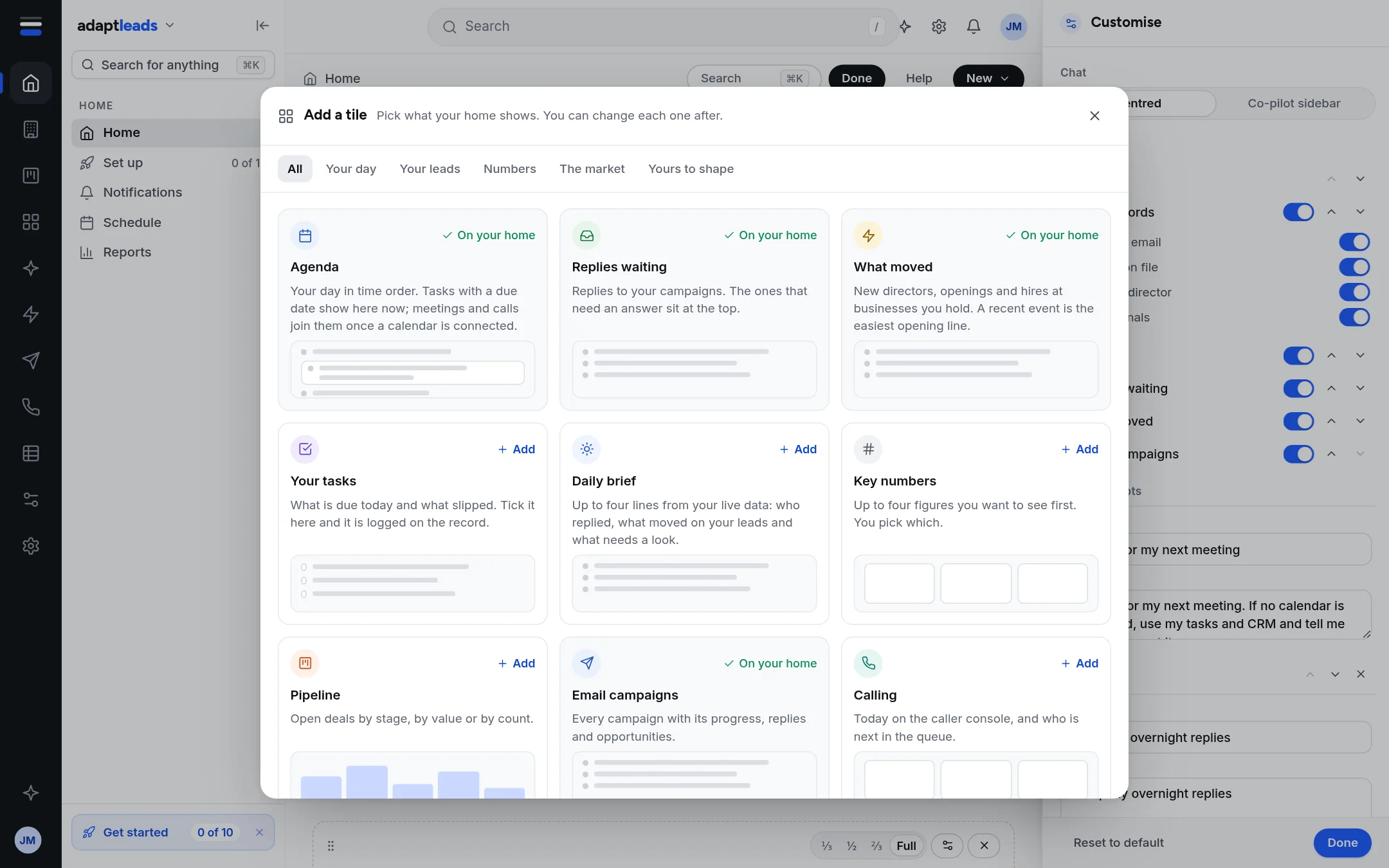
Add a tile lists every tile in groups: Your day, Your leads, Numbers, The market and Yours to shape. A tile already on your Home says On your home. The Note tile can be added more than once.
Press Reset to default in the panel to go back to the default layout.
What is saved
The layout is saved in this browser, per account. It is not on your account yet, so another browser starts fresh.