Call lists and handing them to a team
How lists arrive in the Caller console, what the counts mean, and how to give a list to a team.
The Lists tab shows every list that has been sent to the console. Lists only ever arrive from Adapt Leads, so every record on a caller's screen traces back to one you chose.
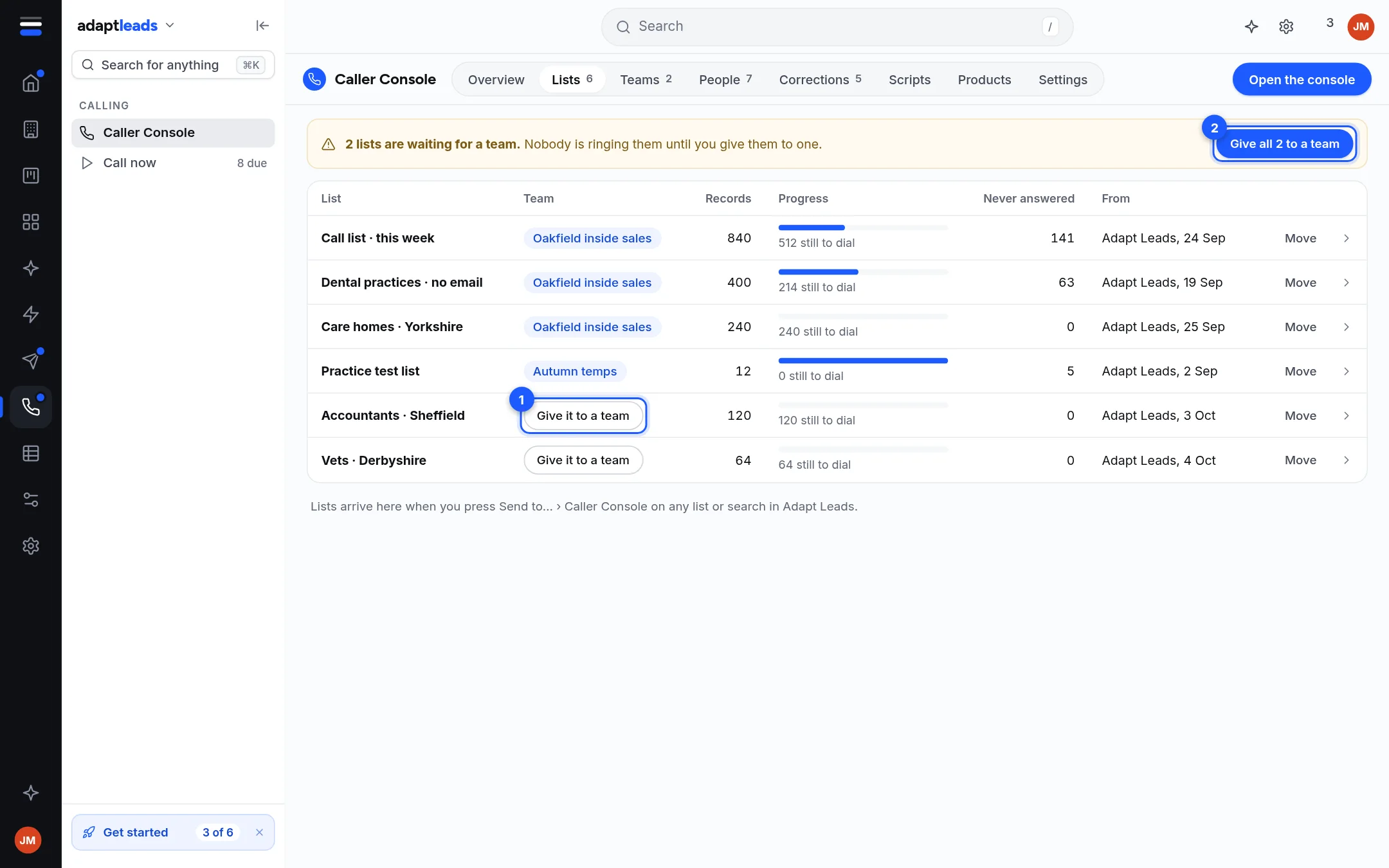
What is on the page
| Part | What it shows |
|---|---|
| Waiting banner | "2 lists are waiting for a team. Nobody is ringing them until you give them to one." Give all 2 to a team (2) gives every waiting list to one team in one go. |
| List | The name you gave it when you sent it. |
| Team | The team that holds it, or Give it to a team (1) when nobody does. |
| Records | How many businesses are in it. |
| Progress | A bar, and how many are still to dial. |
| Never answered | Records rung the full five times with nobody picking up. See Why a business comes back in the queue. |
| From | Where it came from and the date it was sent. |
| Move | Gives the list to a different team. |
Click a row to open one list and see its records, who holds each, and where each one stands.
Give a list to a team
- Open Caller Console, then Lists.
- On a list with no team, press Give it to a team. To move a list that already has one, press Move.
- Pick the team. Nothing is sent to anyone by this step; the team's manager sees the list and hands it to a caller.
You decide which team, not which person. Who on the team rings it is the manager's decision, because they can see who is available and you cannot.
A record someone is holding stays with them
Moving a list reassigns records nobody holds. A record already held by a caller stays with that caller, so work is never pulled out from under someone mid-call.
What does not happen
- You cannot create a list here. Send one from Find, a list or a record. See Send businesses to the Caller console.
- Giving a list to a team does not email the callers. The manager's own console shows it, and when a manager hands lists to a caller that caller is emailed which lists arrived and how many businesses are in them.
- Numbers are not screened against TPS or CTPS. See Calling rules and the law (PECR, TPS and your duties).