Campaigns
The Campaigns page, a campaign's five tabs, and what each status means.
A campaign is one email sequence sent to one list of leads from one or more of your mailboxes. It starts as a draft and nothing sends until you launch it.
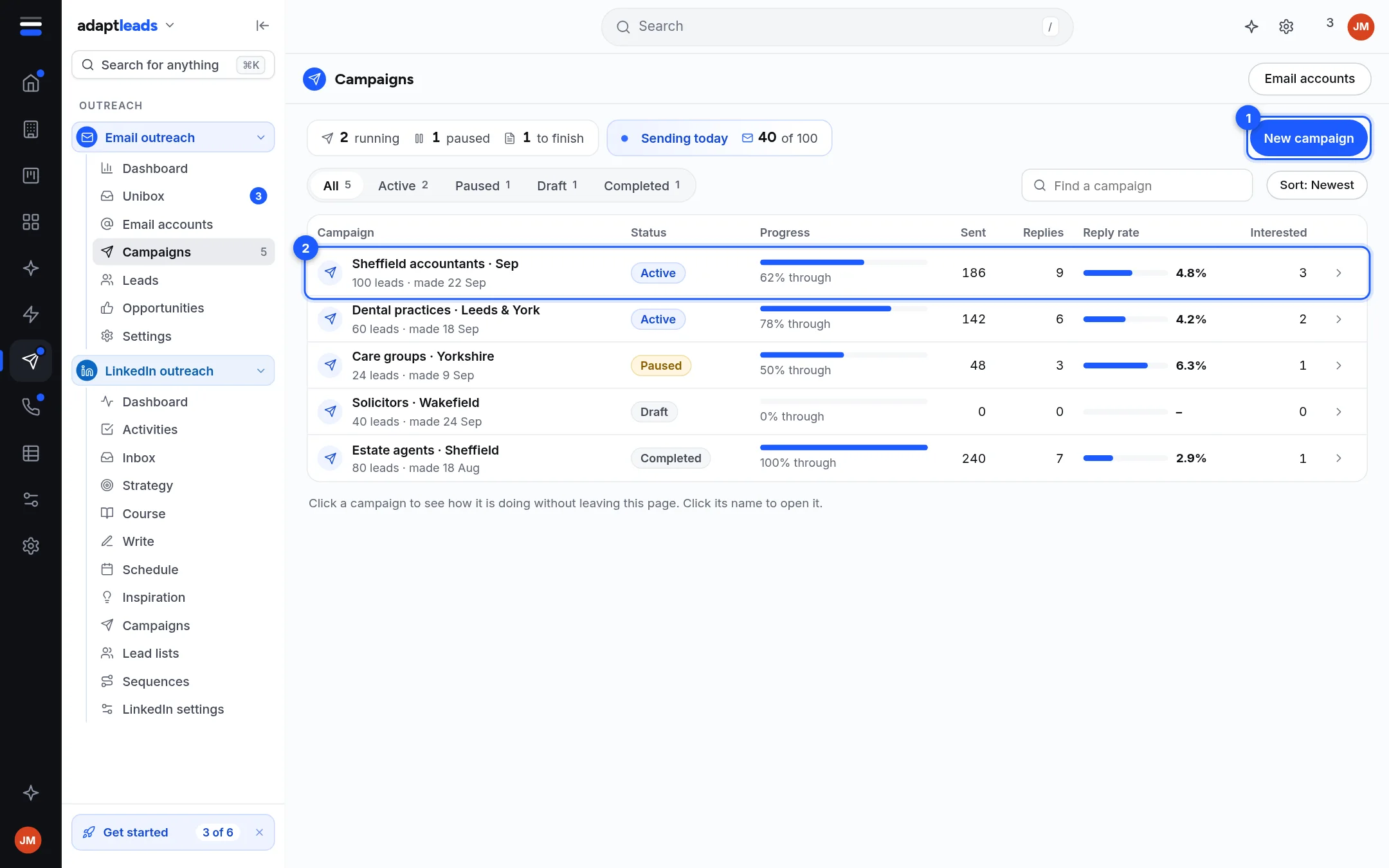
The Campaigns page
Each row shows the campaign name, its status, how many leads it has, how many emails went out, replies, reply rate and the interested count. Click a row for a side panel: how it is doing, what happens next, the emails, the mailboxes it sends from and its latest replies.
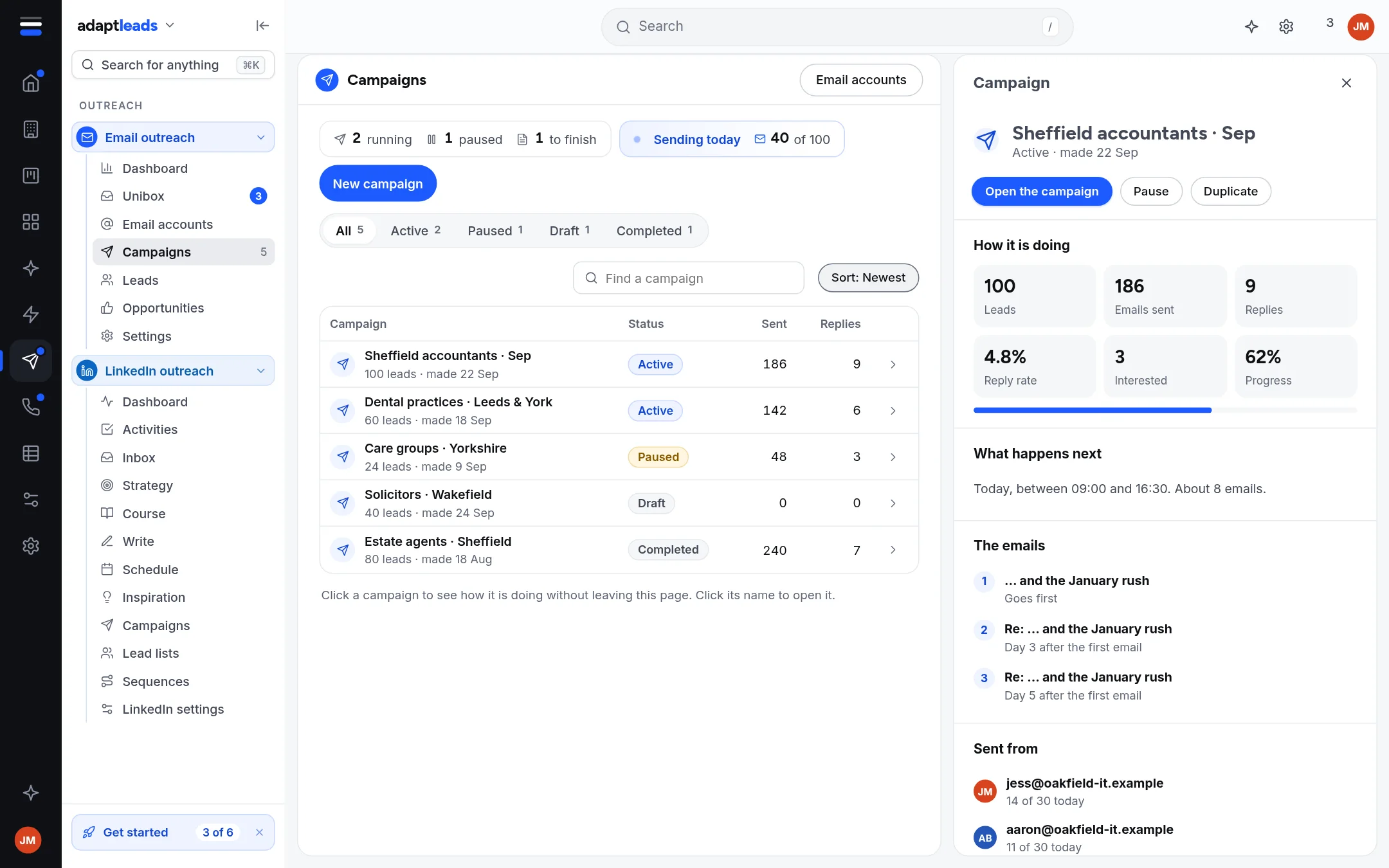
In the panel you can Open the campaign, Pause or Resume, Duplicate or Delete.
| Status | Meaning |
|---|---|
| Draft | Being built. Nothing sent. |
| Active | Sending inside its schedule. |
| Paused | Stopped. Nothing goes out, follow-ups included. |
| Completed | Every lead has finished the sequence. |
Make a new one
Click New campaign. Give it a name, choose the mailboxes to send from, and choose how many emails: three over five days (days 0, 3 and 5), two over four days (0 and 4), or one. It is saved as a draft and opens on its Leads tab.
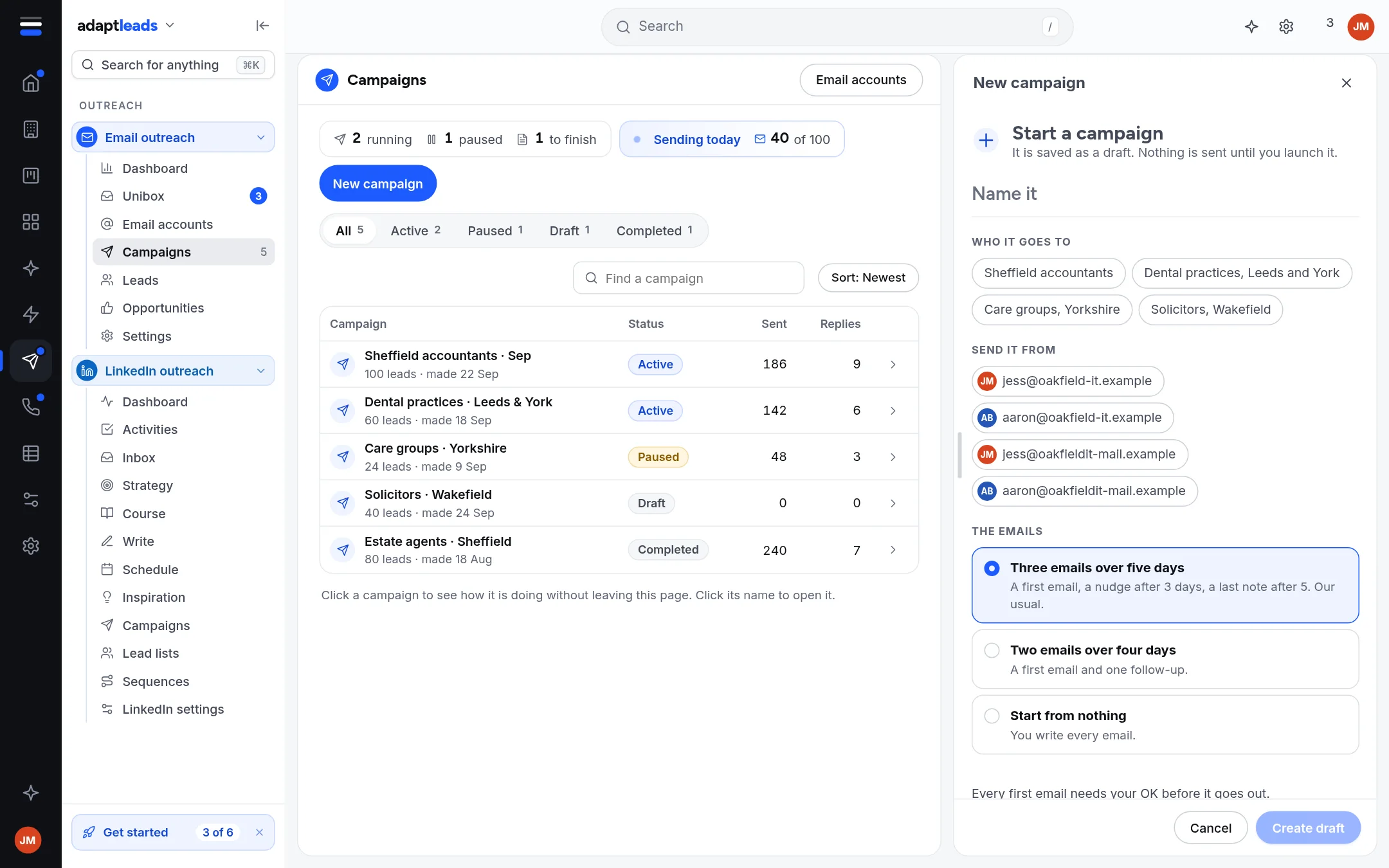
You can start with no mailbox ticked and choose it later in Options.
Inside a campaign
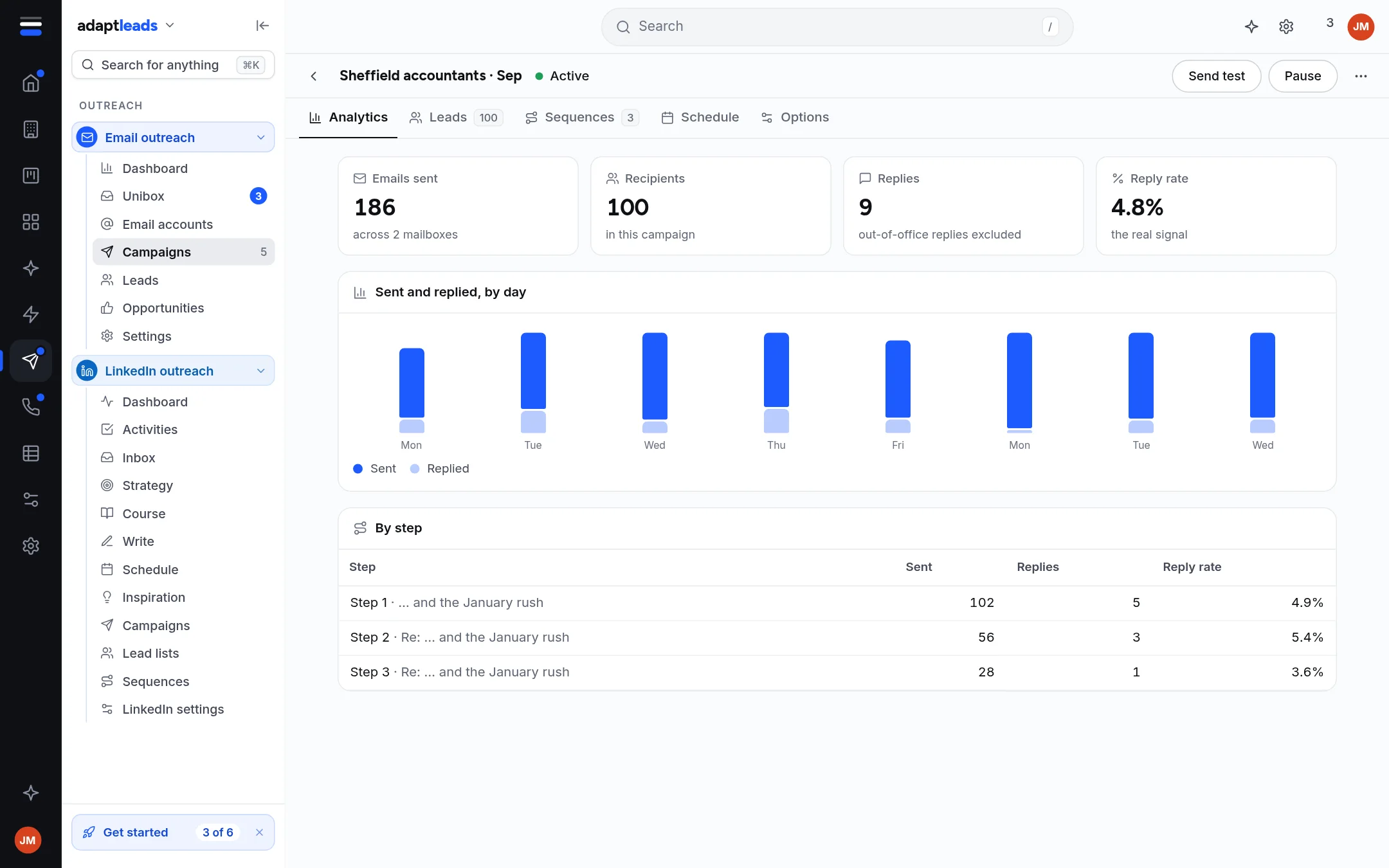
| Tab | What is there |
|---|---|
| Analytics | Emails sent, recipients, replies and reply rate. Per-step figures are not available yet. |
| Leads | Who is in it: Leads in a campaign and on the Leads page |
| Sequences | The steps and the email editor: Write the steps and set the delays |
| Schedule | Days, hours and time zone: Set the schedule and sending hours |
| Options | Mailboxes, limits, the checklist and Launch: Sending limits and why they exist and Approve and launch a campaign |
Once a campaign has launched a Subsequences tab appears. It is empty: subsequences are not available yet.
The buttons at the top are Send test, Save, and Launch, Pause or Resume. The ... menu has Seed test, Preview step 1 and Delete.
Duplicate and delete
Duplicate makes a new draft called "Copy of ..." with the same steps, schedule, options and mailboxes. Its leads, spam check and approval are not copied. Delete archives the campaign. An active campaign stops sending straight away. Nothing is erased: leads stay in your Email leads and replies stay in the Unibox.
Limits
Up to 4 steps and up to 3 variants a step. The editor warns about unsaved changes, and Launch, Test and spam check save first.