Handle a reply
Read a reply, answer it from your own mail app, and turn it into an opportunity or stop emailing the person.
You will have answered the person, and the lead will be marked correctly so nobody emails them twice.
Steps
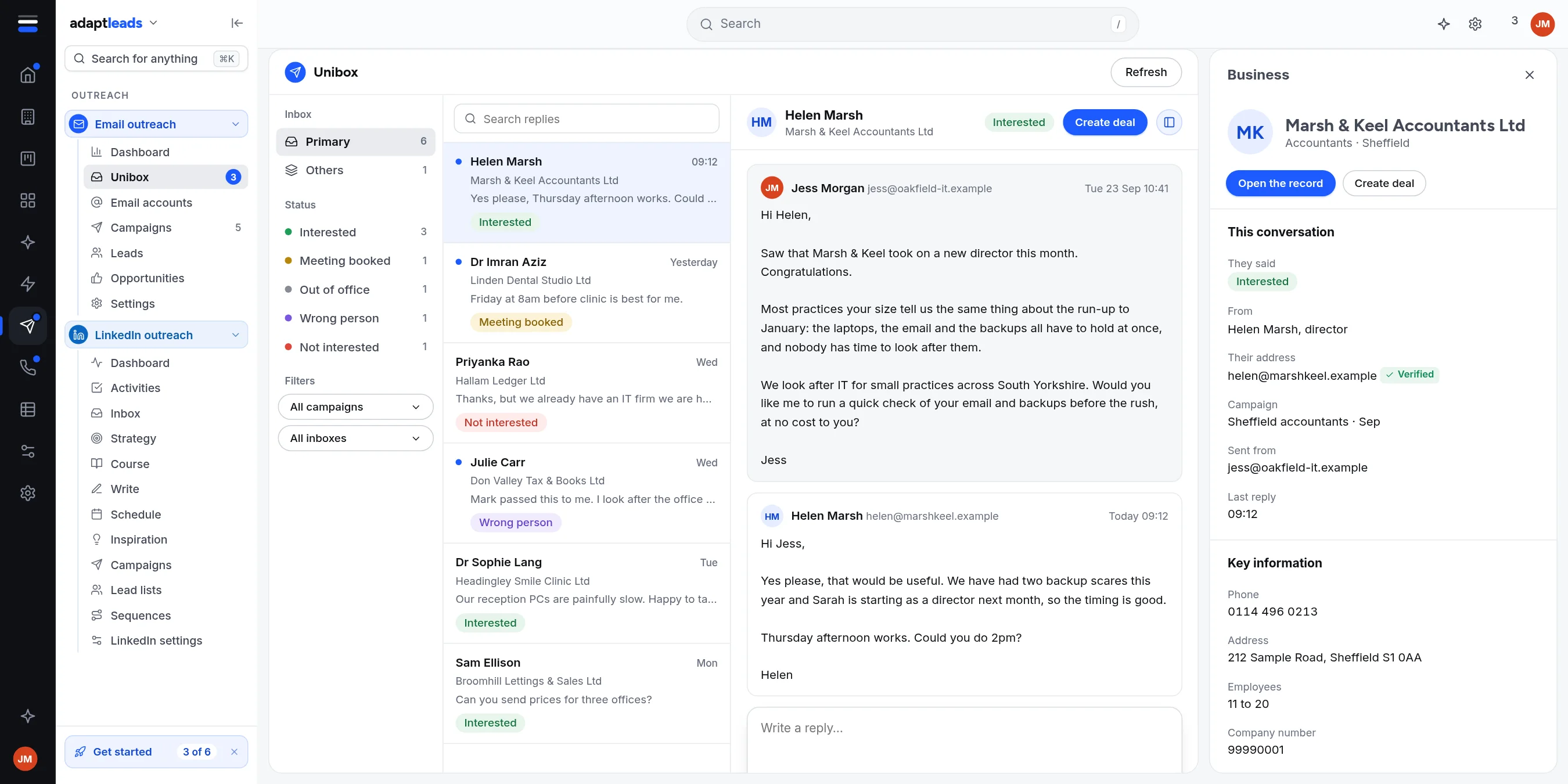
- Open Email outreach, then Unibox. Click the reply. Unread ones have a blue dot.
- Read the thread. The tag and the reason for it are in the contact panel under This conversation. If the tag is wrong, trust your own reading.
- Type your answer in the reply box.
- Click Open in mail app. Your mail program opens a reply to that address with your text. Or click Copy and paste it. Send it from the mailbox the reply came to (shown in the panel as Sent from).
- Then decide what the person is: - Interested: click Mark as interested or Create deal. - Not interested or asked to stop: click ... then Add to do-not-email list. - Wrong person: reply, and add the right person as a lead.
What each action does
- Mark as interested makes an opportunity in Adapt Outreach and stops follow-ups for that person.
- Create deal makes the opportunity and then hands the full lead record to your CRM as a new deal. It is one way. Nothing is emailed. See Opportunities from email replies.
- Add to do-not-email list stops every campaign emailing that address.
Asked to stop
If someone asks to be removed, add them to the do-not-email list straight away. Adapt tags the reply as Unsubscribe but does not remove them by itself.