Scripts and products for a calling team
Write what callers see on screen, then push it to the team. Nothing reaches the callers until you push it.
The Scripts and Products tabs set what a team's callers see in the assist panel during a call. Each team has its own.
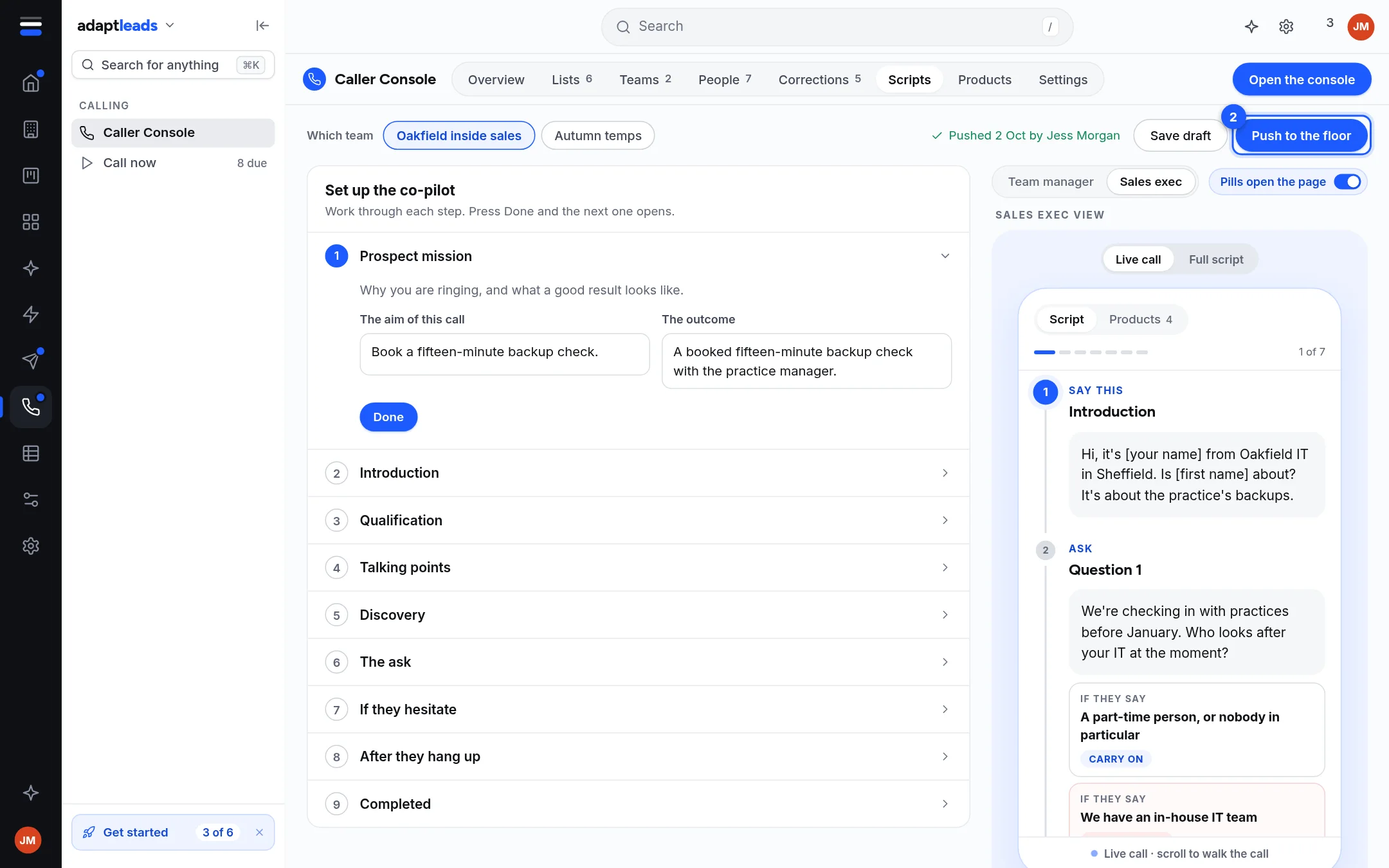
Scripts
- Open Caller Console, then Scripts.
- Under Which team, pick the team. The line beside it says when it was last pushed and by whom, such as "Pushed 2 Oct by Jess Morgan".
- Work down Set up the co-pilot. Press Done and the next step opens. The steps are: Prospect mission, Introduction, Qualification, Talking points, Discovery, The ask, If they hesitate, After they hang up, Completed.
- Check the preview on the right. You can view it as a Team manager or a Sales exec, and as a Live call or the Full script.
- Press Save draft to keep your work, or Push to the floor (2) to put it on the callers' screens.
Push to the floor changes what callers see
Saving a draft changes nothing for callers. Pushing it does, for that team. The Call now page and the callers' console say "Nothing has been pushed to this team's floor yet" until you push.
What callers see
In the console, the right-hand panel has three tabs: Script, Products and Learned. The script reads as a conversation: what to say, what to ask, and what to do if they say a given thing, with an option marked as carry on or end the call. Hide assist gives a caller more room on a small screen.
Products
Products lists what the team sells, as short descriptions callers can open when asked. Settings counts them: "4 products and services, on the callers' phones for [team]". A product has no price in the live app.
Limits
- One script per team. Writing it for one team does not touch another.
- The setup wizard can only run on an empty floor today, because it would replace each team's draft script. See Caller console settings.
- The examples in the pictures are made up.