How the app is laid out
The app has a dark icon rail, a side menu for the area you are in, a top bar with search, and the page itself.
Every page has the same frame. Learn it once and you can find anything.
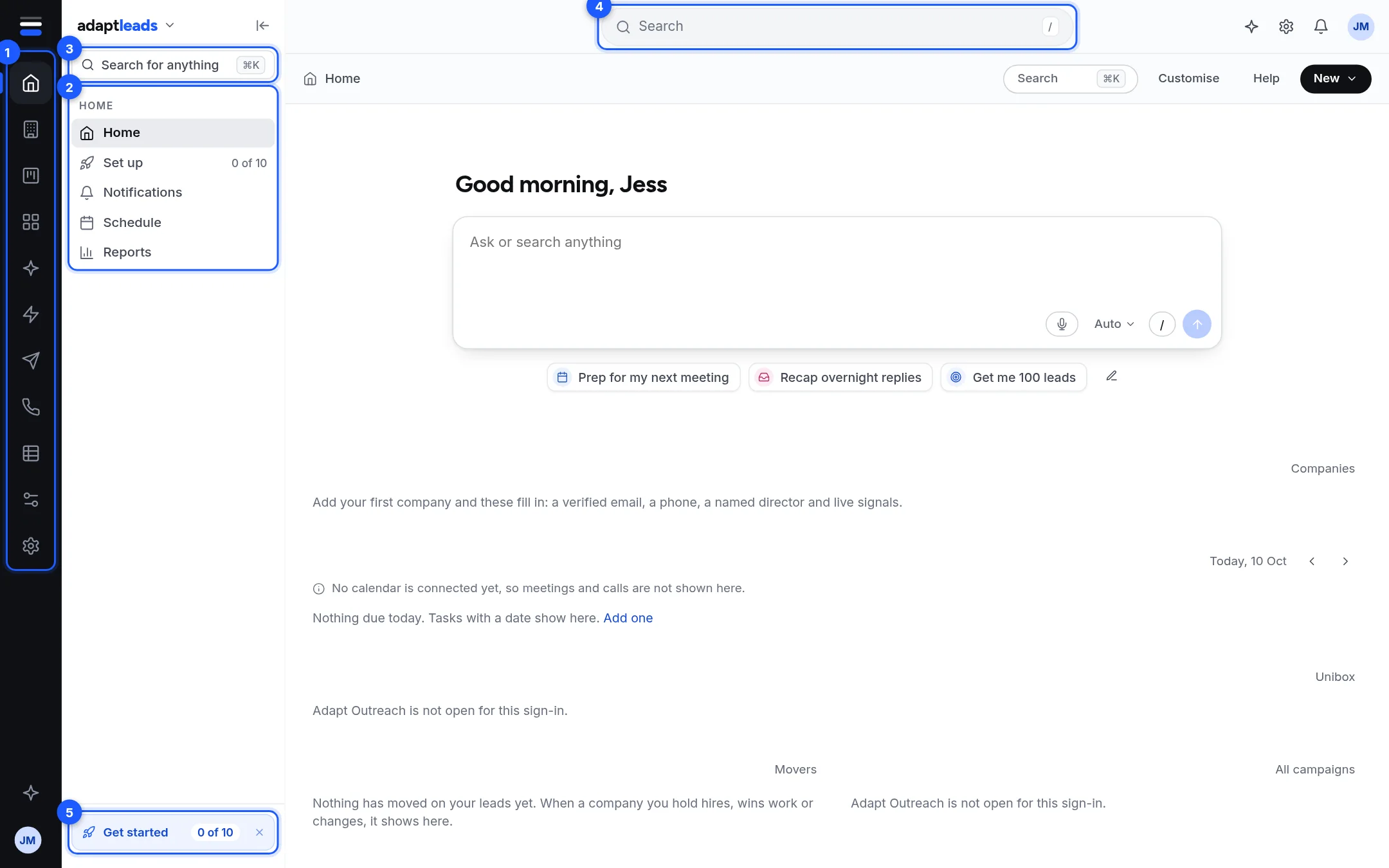
| Mark | Part | What it does |
|---|---|---|
| 1 | Icon rail | One icon per area. Press an icon to go to that area. Hover for its name. |
| 2 | Side menu | Lists only the pages of the area you are in. |
| 3 | Search for anything | Opens the command palette. See Use search and the command palette. |
| 4 | Top bar | Search, Ask Adapt (the sparkle), Settings (the cog), Notifications (the bell) and your initials. |
| 5 | Get started chip | Shows how many set-up steps are done. Opens Set up Adapt Leads: the Set up page. |
The areas, top to bottom on the rail
| Area | Pages in its side menu |
|---|---|
| Home | Home, Set up, Notifications, Schedule, Reports |
| The UK book | Businesses, Directors |
| CRM | The CRM pages, and Your stack |
| Lists | Lists and folders |
| Agents | Agents |
| Adapt Insights | Feed, Analytics, Movers, Locations, Sectors |
| Outreach | Email outreach and LinkedIn outreach |
| Calling | Caller Console, Call now |
| Data | Enrich a list, Data health, Entity review, Verification queue |
| Customise | Build with Adapt, Cards and pages, Templates, Workflows, Tests |
| Account | Plan and billing, Settings, Help and support |
The sparkle at the bottom of the rail opens Ask Adapt. Your initials at the very bottom open Settings.
Collapse the menu
Press the icon at the top of the rail (or the arrow beside the product name) to shut the side menu. With it shut, hovering an icon opens a small pop-out of that area's pages.
The product name menu
Press the product name at the top of the side menu. It shows your workspace, your name, your exports left this month, the Theme switch, Menu, sidebar and density, Settings, Plan and billing, and Sign out. New workspace in that menu is not built: it only shows a message.
On a phone
The burger button at the top left opens the menu. The same search, Ask Adapt, Settings and Notifications buttons sit on the top bar.
Keyboard
Ctrl or Cmd and K, or the / key (when you are not typing in a box), opens search. Escape closes it.