Set up your feed: who you sell to, and where
Five steps tell Insights your sectors, sizes, places, the news you want, and whether to email you.
You will end with a saved feed, so Feed, Analytics, Movers and Sectors show only your market. It takes about a minute.
Steps
- Open Adapt Insights then Feed, and click Set up your feed. If you have already saved one, the button says Edit my feed. A new account is also asked once per browser session.
- 1. Who you sell to. Search for sectors and click each one you sell into. You can pick up to 30. With nothing picked it says Every sector. When you have not searched, the list shows the sectors busiest for news right now.
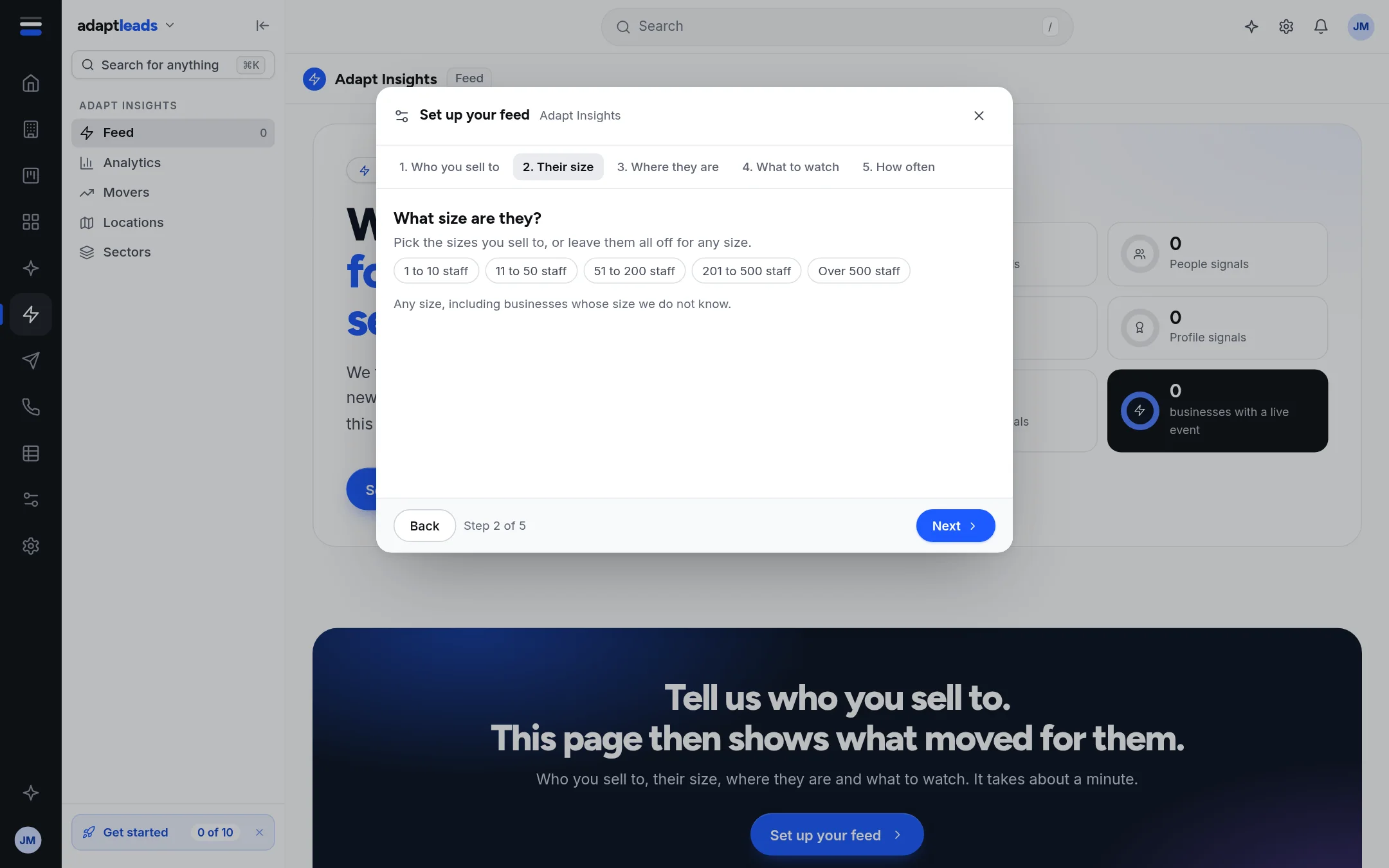
- 2. Their size. Pick from 1 to 10, 11 to 50, 51 to 200, 201 to 500, or over 500 staff. Leave all off for any size. Adapt knows staff numbers for only a small share of businesses, so keep Include the ones whose size we do not know on, or you will miss most of them.
- 3. Where they are. Search a town or a postcode area, such as Leeds or LS. With nothing picked it says All of the UK.
- 4. What to watch. Choose kinds of news, grouped as Growth, People, Profile, Changes, Relationships and Risk. Pick at least one. A switch adds Industry news for your sectors: stories that do not name one firm.
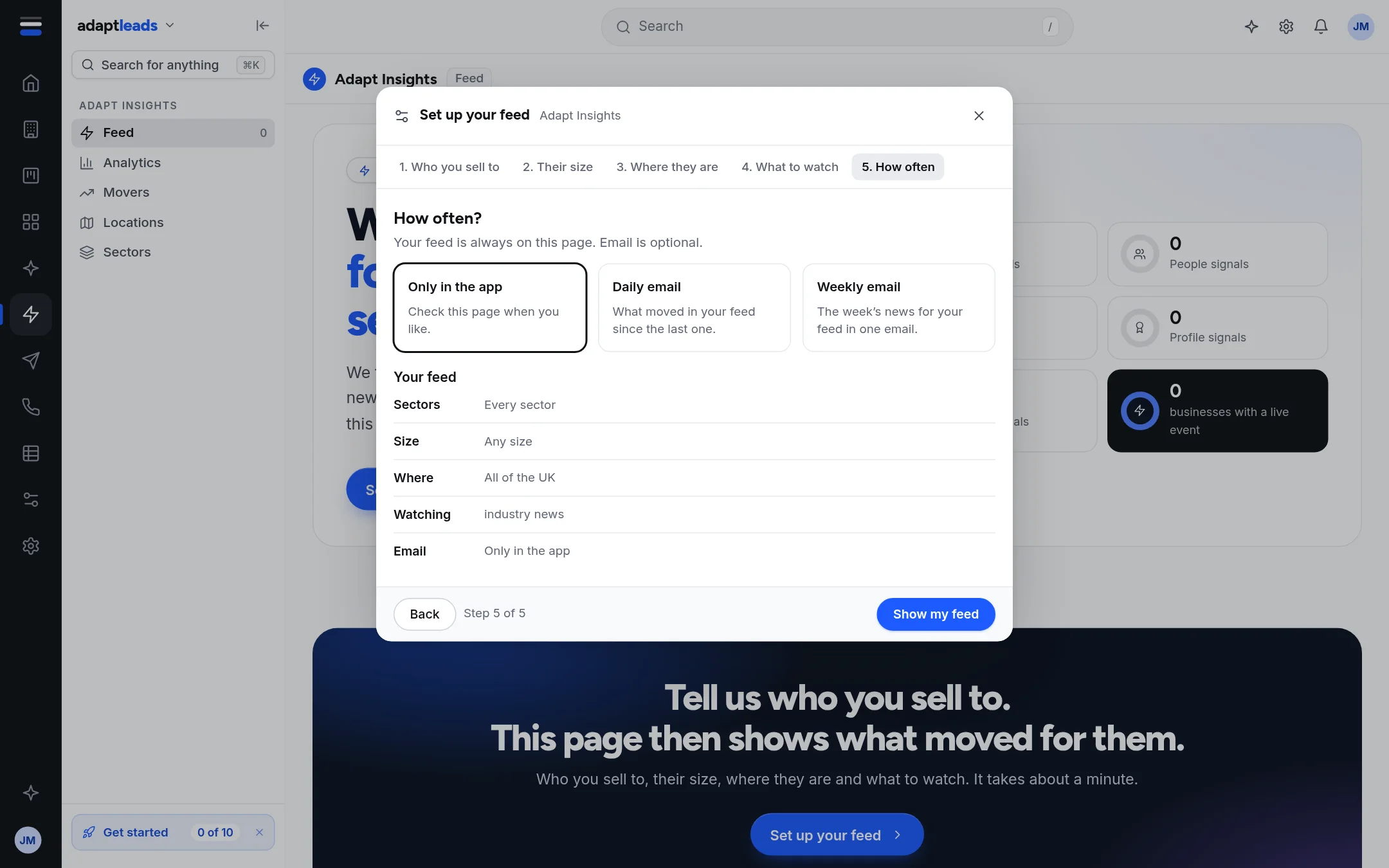
- 5. How often. Choose Only in the app, Daily email or Weekly email.
- Click Show my feed, or Save and email me daily or weekly.
What happens next
Your feed is saved to your account, so it is the same on any browser. The pages reload with your market. If you chose an email, the first one comes with the next send. See Get your signals by email, daily or weekly.
Limits
- Up to 30 sectors.
- At least one kind of news.
- If the sector list does not load, the step says so and you can try again in a moment.
What your feed is used for
Feed, Analytics, Movers, Locations and Sectors use it. Settings on the Agents page shows it as Who you sell to, but see The Search agent for what Search does with it today.