Build a workflow
Describe it in words or build it block by block, then read it back and check it before you turn it on.
You will have a workflow drawn on the canvas, checked, ready to test.
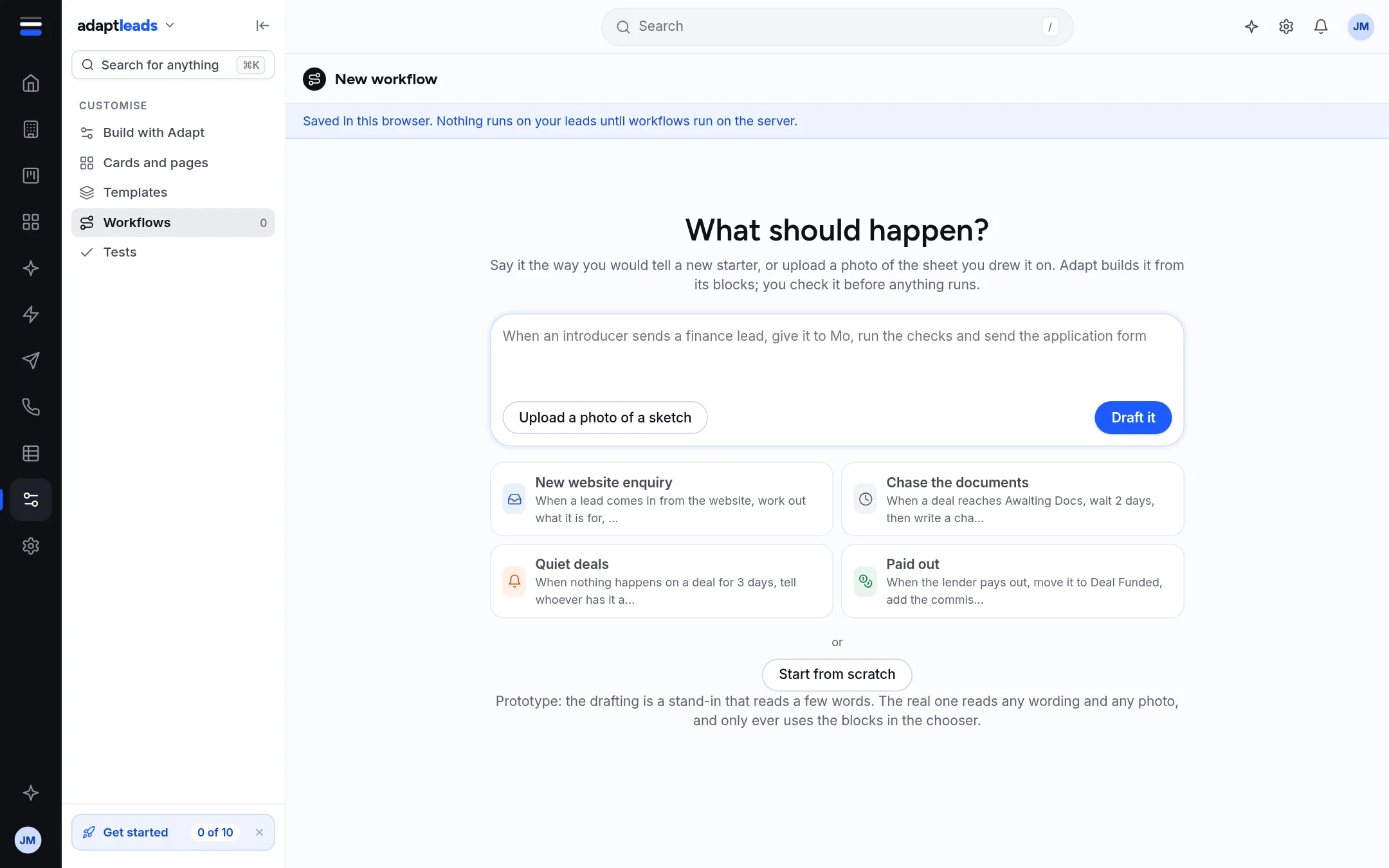
Option 1: describe it
- Open Workflows and press New workflow.
- Under What should happen?, type it the way you would tell a new starter, or press a card such as New website enquiry, Chase the documents, Quiet deals or Paid out to fill the box.
- Press Draft it.
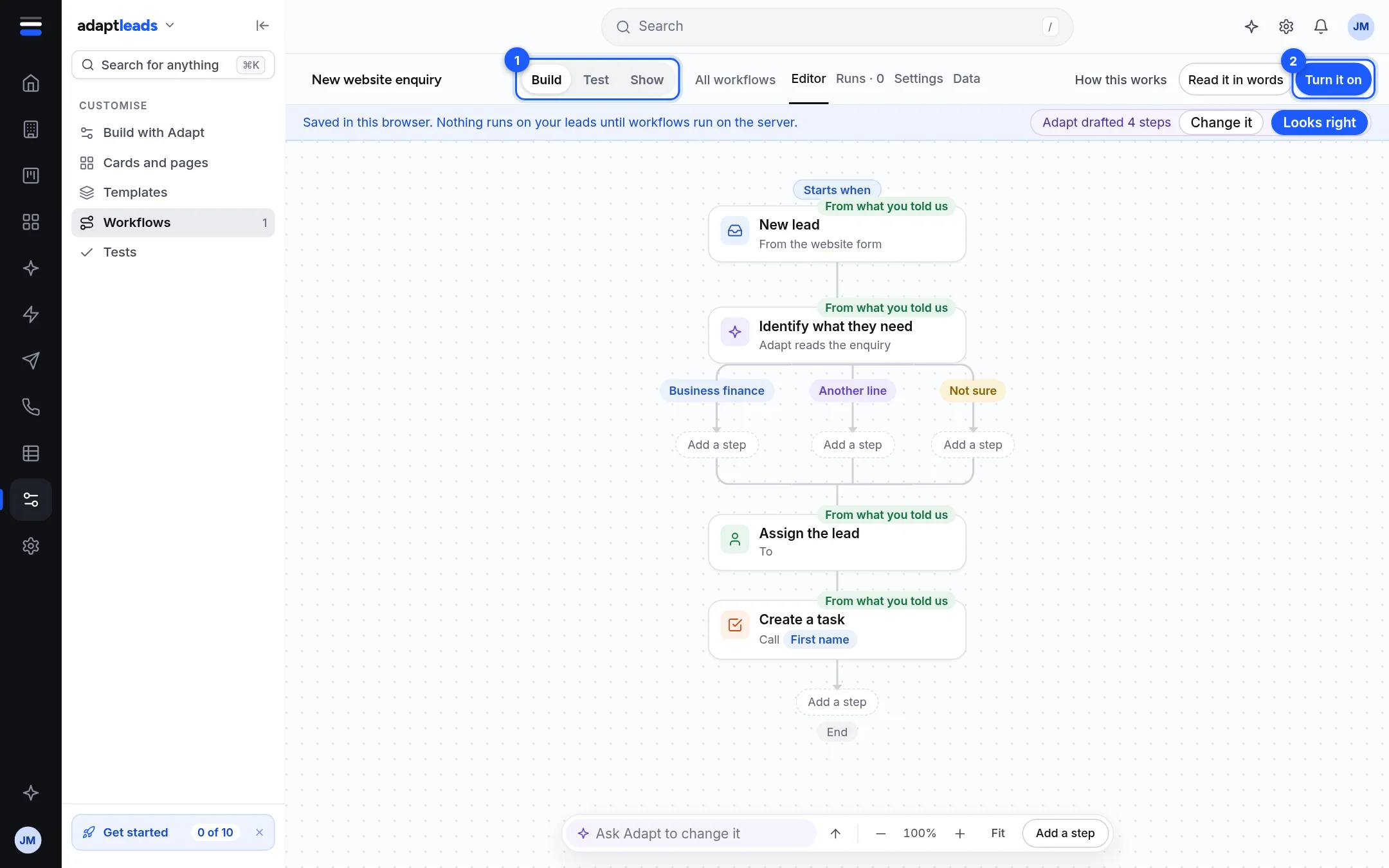
Adapt builds it from its own blocks and shows "Adapt drafted 4 steps" with Change it and Looks right. The drafting is a stand-in that reads a few words: words it cannot read build nothing. It never uses a block that is not in the stockroom. Upload a photo of a sketch does not read a photo yet: say what should happen in words.
Option 2: start from scratch
- Press Start from scratch. You get an empty draft called "Untitled workflow".
- Click the name and type your own.
- Click Choose what starts it and pick a block. See Blocks and triggers in the stockroom.
- Press Add a step under it, and pick each step. Use the settings panel on the right to fill in what each block needs. A step with a missing setting shows in amber, and the banner says "1 step needs…" with Show me.
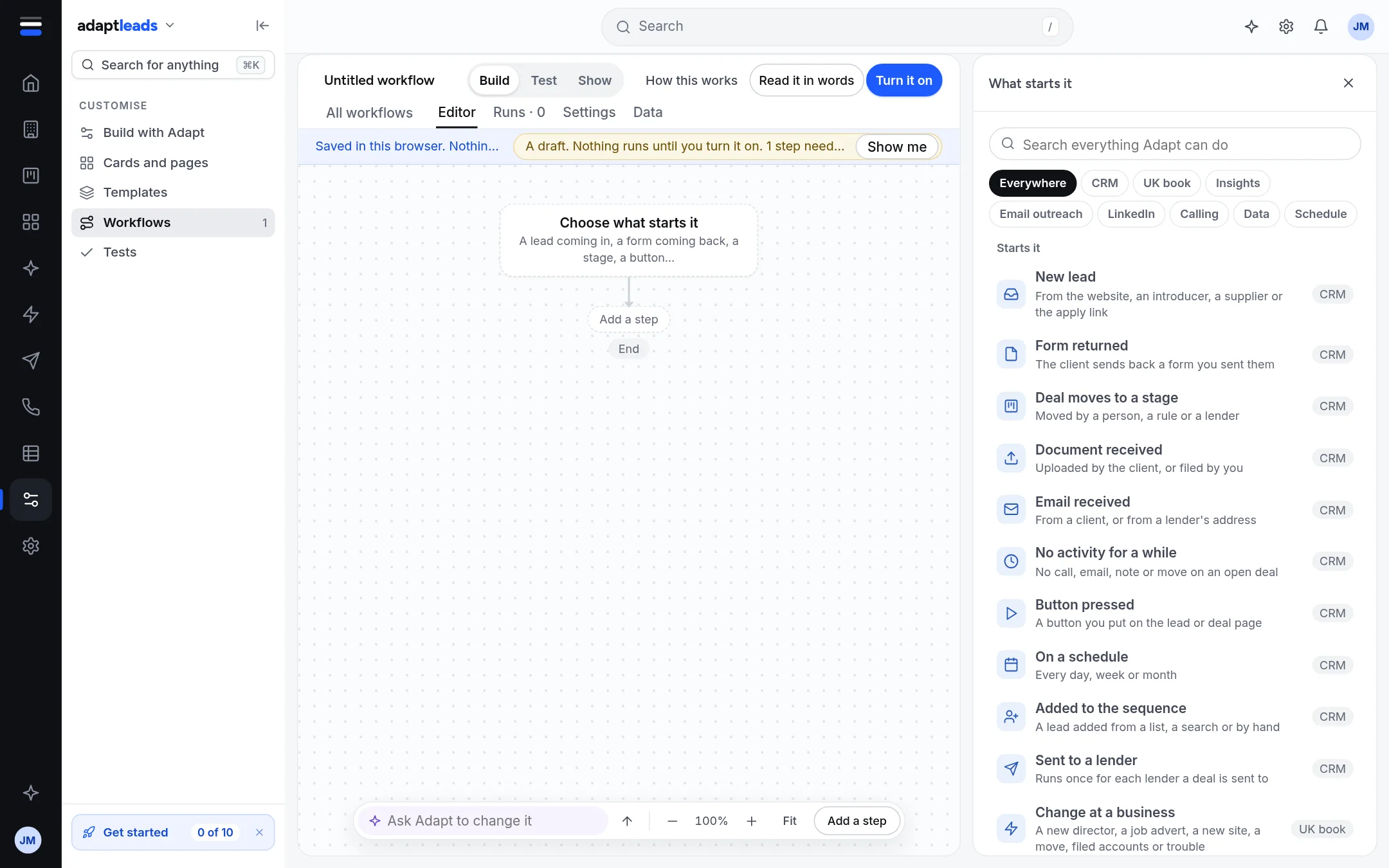
The stockroom on the right has a search box, area filters (Everywhere, CRM, UK book, Insights, Email outreach, LinkedIn, Calling, Data, Schedule) and every block grouped by what it does.
Change a draft
- Ask Adapt to change it (the bar at the foot) opens a chat beside the canvas. It never changes the canvas by itself: it offers Add a step, Change a step and Explain this, and a new step needs your confirmation. If the chat cannot be reached it says so, and the buttons still work.
- Add a step on the canvas adds one directly.
- Read it in words shows the workflow as a sentence.
- Zoom with the minus and plus buttons or Fit.
Check and turn it on
- Press Test to try it on a pretend lead. See Test a workflow on a pretend lead.
- Press Turn it on. In this app it says "Published in this browser. Nothing runs on your leads yet."
Other tabs on a workflow: Runs, Settings and Data (the workflow as plain data). Show walks a team through it. How this works repeats the guide.
Rules for a workflow
- It starts with one thing that happens.
- It is a draft until you turn it on.
- A split or check gives each answer its own path. When steps follow a split, every path carries on into them.